How to Add a Video to Google Slides (2026 Guide)
To add a video to Google Slides, click Insert, then Video, and choose YouTube search, By URL, or Google Drive. Select the video and click Insert, then drag to resize. You can set it to autoplay and trim the start and end. Full steps are below for YouTube videos and your own uploaded files, how to embed and put a video on a slide, why videos sometimes will not play, and a faster way to turn the whole deck into a video.
This video was made with Velo. No editing, no retakes.
Try it freeHow to add a video to Google Slides
- Open your slide and click Insert, then Video.
- Choose a source: YouTube search, By URL, or Google Drive.
- Select the video and click Insert.
- Drag the corners to resize and position it.
- Right-click the video, choose Format options, then Video playback to set playback and trim the start and end.
This is the same flow whether you want to insert, embed, or put a video on a slide.
How to add a YouTube video to Google Slides
Click Insert, then Video, and stay on the YouTube tab to search, or switch to By URL and paste a link. Select the result and click Insert. This is the quickest method because the video streams from YouTube, so it does not add to your file size. You do need an internet connection when you present, and the video must stay public or unlisted to keep working.
How to insert your own video into Google Slides
To use a file from your computer, upload it to Google Drive first: click New, then File upload, and choose an MP4. Then in your deck click Insert, then Video, open the Google Drive tab, select the file, and click Insert. Convert files to MP4 before uploading for the best compatibility.
How to make a video autoplay, loop, or trim in Google Slides
Right-click the video, open Format options, then Video playback. Set it to play On click, Automatically, or When presenting, tick Loop video if you want it to repeat, and use the start and end fields to trim to the exact clip you need.
Why won’t my video play in Google Slides?
The most common cause is Drive sharing. If you embed a video from Drive, set it to Anyone with the link, or viewers see a video cannot be played error. Test on the same account and network you will present with, and remember that very large files can take time to process after upload.
A faster way: turn the whole deck into a video
Embedding one clip is easy. When you want the entire deck to play as a single narrated video, or you want a real product demo inside it, this is where Velo comes in:
- Point Velo at your slides, or turn the document into a video.
- Velo builds a narrated, captioned video from the deck, and you can drop in a polished screen recording where you need a live demo.
- Need a change? Edit the script and regenerate. No re-recording.
- Share one link that plays anywhere, with no Drive permissions to manage.
You build the deck once. Velo turns it into a video worth sending.
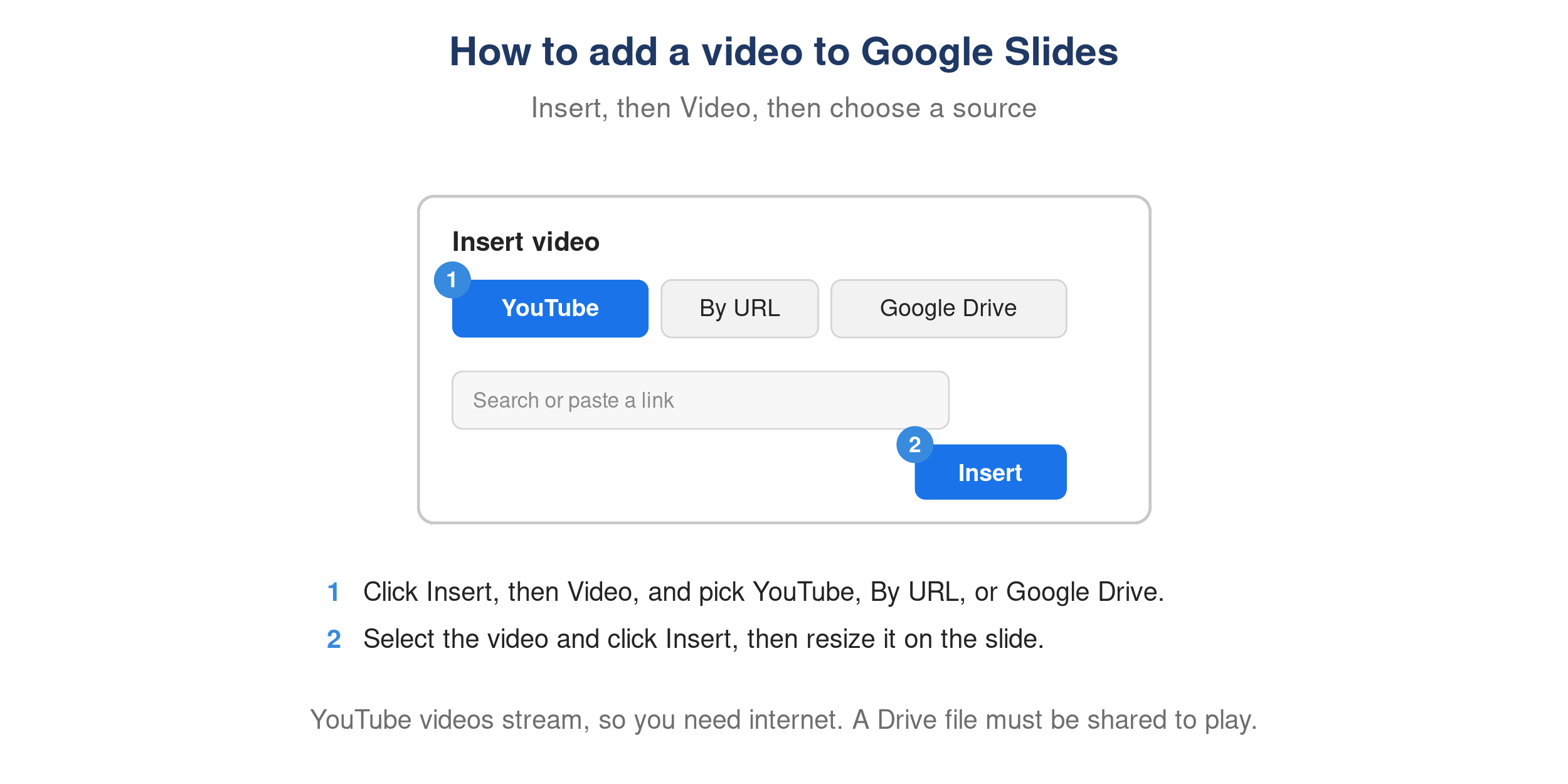
The Insert Video dialog in Google Slides with the YouTube, By URL, and Google Drive tabs.