How to Record Your Screen on a PC
To record your screen on a PC, press Win+G to open the Xbox Game Bar, then click the Record button in the Capture panel, or press Win+Alt+R to start and stop. On Windows 11 you can also use the Snipping Tool's screen recorder. Recordings save to Videos, then Captures. Full steps, how to record with sound, and the desktop workaround are below.
This video was made with Velo. No editing, no retakes.
Try it free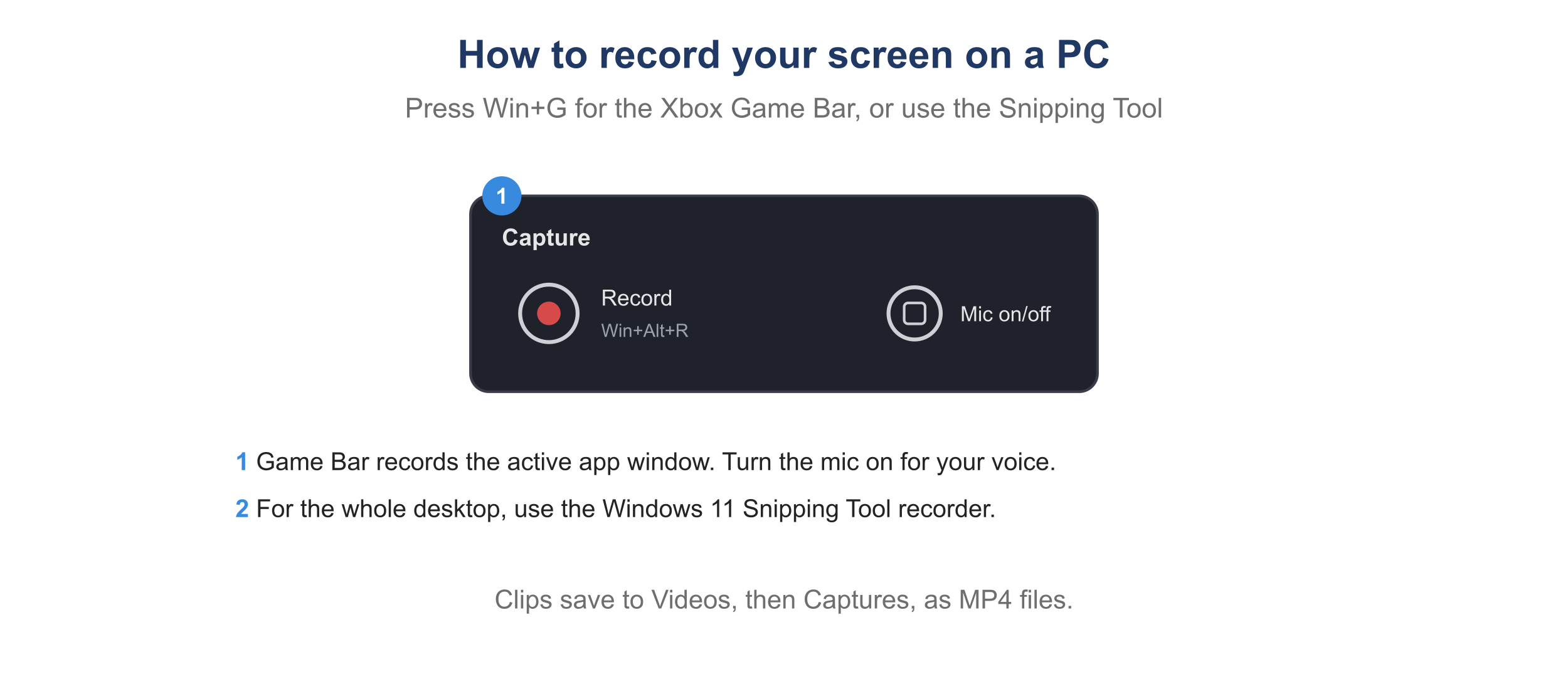
The Xbox Game Bar Capture panel on Windows.
How to record your screen on a PC with the Xbox Game Bar
- Press Win+G to open the Xbox Game Bar.
- In the Capture panel, click the Record button, or press Win+Alt+R.
- Use the microphone icon to record your voice along with the screen.
- Click Stop, or press Win+Alt+R again, to finish.
- The clip saves to Videos, then Captures.
The Game Bar records the active app or window, not the desktop or File Explorer.
How to record your screen on Windows 11 with the Snipping Tool
- Open the Snipping Tool and select the record (camera) icon.
- Click New, then drag to select the area of the screen to record.
- Click Start, and click Stop when done.
- Save the recording from the preview window.
The Snipping Tool records any part of the screen, which fills the Game Bar’s gap for desktop capture.
How to record your screen on a PC with sound
Turn on the microphone in the Game Bar Capture panel to add your voice. To capture system sound from an app or browser, make sure the Game Bar audio settings include system audio, or record with the Snipping Tool or a dedicated recorder.
Where do PC screen recordings save?
Game Bar clips save to Videos, then Captures, as MP4 files. Snipping Tool recordings save wherever you choose in the save dialog. To trim or tighten a long clip, see how to speed up a video.
Why can’t I record my screen on a PC?
- The Game Bar will not record the desktop. By design it records an app or game window. Use the Windows 11 Snipping Tool for desktop or File Explorer capture.
- There is no sound. Turn on the microphone in the Capture panel, and check the Game Bar audio settings for system audio.
- The Game Bar does not open. Enable it in Settings, then Gaming, then Xbox Game Bar.
How to turn a PC recording into a video worth sharing
A raw screen recording is long and unpolished. When you need to send it as a demo, walkthrough, or training video, Velo rebuilds it into a polished video that is trimmed, with auto-zoom on what matters. Fix a mistake by editing the script, not by re-recording, and one click turns the recording into a written doc for your help center.