How to Speed Up a Video
To speed up a video, open it in a video editor, select the clip, and raise the playback speed to 1.5x, 2x, or higher. Free options include CapCut, iMovie on Mac and iPhone, the Photos app, and browser tools like Clideo or Veed. Steps for each are below. If your goal is a long recording that feels tight rather than rushed, skip the speed slider and read the last section.
This video was made with Velo. No editing, no retakes.
Try it freeHow to speed up a video online (no install)
- Open a browser tool like Clideo, Veed, or Kapwing.
- Upload your video file.
- Choose a speed: 1.25x, 1.5x, 2x, or a custom value.
- Preview, then export and download the MP4.
Online tools are the fastest route when you do not want to install anything, though free tiers often add a watermark or cap the length.
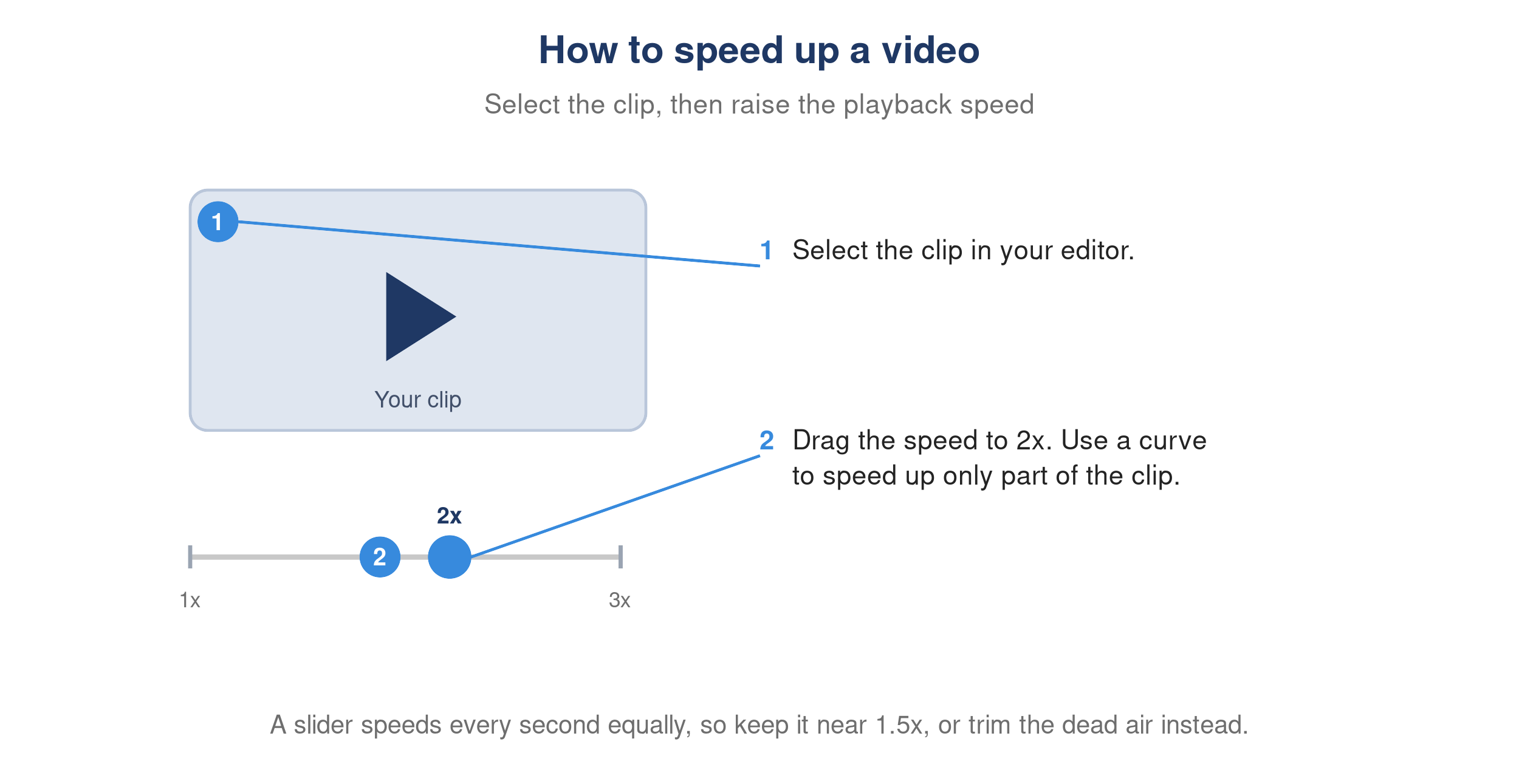
A video editor speed control set to 2x to speed up the selected clip.
How to speed up a video on iPhone (CapCut or Photos)
On iPhone, the free CapCut app gives you the most control:
- Open CapCut, tap New Project, and add your clip.
- Tap the clip, then tap Speed.
- Choose Normal and drag to 2x, or use Curve for a variable ramp.
- Tap Export to save to your camera roll.
To speed up a slow-motion clip you already shot, open it in Photos, tap Edit, and drag the speed lines at the bottom closer together.
How to speed up a video on Mac (iMovie)
- Open iMovie and drop your video into the timeline.
- Click the clip, then click the speedometer icon above the viewer.
- Set Speed to Fast and pick 2x, 4x, and so on.
- Click Share, then File, to export.
iMovie is free on every Mac and iPhone, so it is the simplest option on Apple hardware.
How to speed up a video on Windows (Clipchamp)
- Open Clipchamp, which ships free with Windows 11.
- Import your video and drag it to the timeline.
- Select the clip and open the Speed tab.
- Raise the slider, then Export at 1080p.
Where speeding up falls short
A speed slider treats every second the same. It rushes the parts that matter, keeps the dead air in proportion, and pitches the audio up into a chipmunk voice unless the tool corrects it. For a quick clip that is fine. For a walkthrough, demo, or training video you want people to follow, uniform speed is the wrong tool.
A faster way to tighten a long recording
When the real problem is that your recording is too long and slow, Velo rebuilds it instead of speeding it up:
- Upload the raw video, or paste a link and let Velo record the workflow for you.
- Velo writes a fresh, tighter script and narrates it in a clean voice, so there is no sped-up audio.
- It trims the dead air and auto-zooms on what matters, so the pace comes from cutting filler, not from rushing playback.
- Need it shorter still? Edit the script and regenerate. No re-recording.
One click also turns the same recording into a written doc for your help center or notes. You get a video that feels fast because it is tight, not because it is on 2x.