How to Add Audio to Google Slides (2026 Guide)
Google Slides cannot record sound on its own, so you upload the file first. Add an MP3 or WAV to Google Drive, then in your deck click Insert, then Audio, pick the file, and set it to play on click or automatically. The same method works for music, background tracks, and voice narration. Full steps are below, plus how to make audio play across all slides, why it sometimes fails, and a faster way to share a narrated deck.
This video was made with Velo. No editing, no retakes.
Try it freeHow to add audio to Google Slides
- Upload your audio to Google Drive: click New, then File upload, and choose an MP3 or WAV file.
- Open your presentation and select the slide that needs sound.
- Click Insert, then Audio.
- Find your file, select it, and click Insert. A speaker icon appears on the slide.
- Click the speaker icon, open Format options, then Audio playback, and choose Start playing On click or Automatically.
This is the same process whether you want to insert audio, put audio on a slide, or upload an audio file, since Google Slides only plays sound from a file stored in Drive.
How to add music to Google Slides
Music works the same way as any audio file. Upload the track to Drive, insert it with Insert then Audio, and under Audio playback set it to play automatically. To keep the audio icon out of the way during your talk, tick Hide icon when presenting.
How to add background music across all slides
Place the audio on your first slide, set it to play Automatically, tick Loop audio, and enable the option to continue playing across slides. The track then plays as background music for the whole deck instead of stopping when you advance.
How to add music from YouTube
Google Slides cannot pull audio straight from a YouTube link. To use a track, save an audio file you have the rights to as an MP3, upload it to Drive, and insert it with the steps above. If you only need the clip to play while you present, you can instead insert the YouTube video itself on a slide.
How to record voice narration for Google Slides
Google Slides has no built-in voice recorder, so record your narration in a separate app such as your phone or a voice recorder, export it as an MP3, and insert it slide by slide. This is fine for a short deck, but it becomes slow for a full presentation, which is where the video option below helps.
How to make audio play automatically or on click
Select the speaker icon, open Format options, then Audio playback. Set Start playing to Automatically for hands-free playback or On click if you want to trigger it yourself. You can also loop the audio, adjust the volume, and hide the icon during the show.
Why won’t my audio play in Google Slides?
The most common cause is Drive sharing. The audio file must be shared so viewers can reach it, so set it to Anyone with the link. Audio also does not travel when you download the deck as PowerPoint or PDF, and it will not play inside those exports. If the sound has to stay with the presentation everywhere it goes, a video is the more reliable format.
A faster way: turn the deck into a narrated video
Inserting audio clip by clip is fine for one slide, but for a whole presentation it is slow and fragile. When you want narration that stays with the deck and plays anywhere, this is where Velo comes in:
- Point Velo at your slides, or turn the document into a video.
- Velo writes a script and narrates the whole deck in your own voice, with captions.
- Need a change? Edit the script and regenerate. No re-recording.
- Share one link or MP4 that plays anywhere, with no Drive permissions to manage.
You build the deck once. Velo turns it into a video people can actually watch.
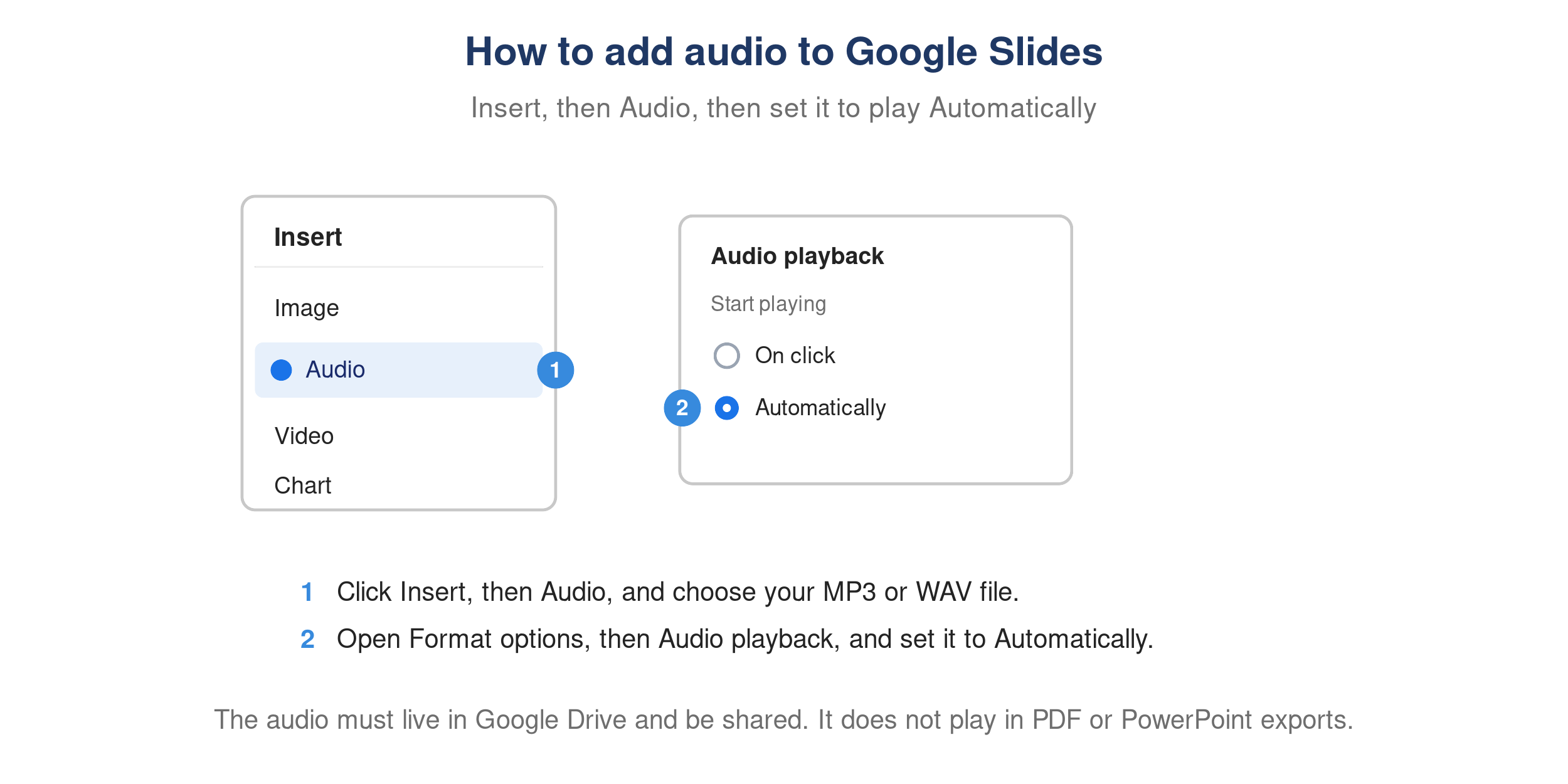
Inserting audio in Google Slides and setting Audio playback to Automatically.