How to Record a FaceTime Call
FaceTime has no built-in call recorder, so you record a FaceTime call with your device's screen recording. On iPhone or iPad, open Control Center and tap the Screen Recording button. On a Mac, press Cmd+Shift+5. To capture sound, turn the microphone on. Recording someone without consent may be illegal where you live, so always ask first.
This video was made with Velo. No editing, no retakes.
Try it freeHow to record a FaceTime call on iPhone or iPad
- Add Screen Recording to Control Center: open Settings › Control Center and add Screen Recording.
- Start your FaceTime call.
- Open Control Center and tap the Screen Recording (circle) button. A 3-second countdown starts.
- To record with sound, press and hold the Screen Recording button first, then turn the Microphone on.
- Return to FaceTime. A red status bar shows you’re recording.
- To stop, tap the red bar or the Screen Recording button again. The video saves to Photos.
How to record a FaceTime call on Mac
- Start the FaceTime call.
- Press Cmd+Shift+5 to open the screen recording tools.
- Under Options, choose your microphone so the call audio is captured.
- Click Record, then stop from the menu bar when you’re done. The file saves to your desktop by default.
Does FaceTime notify the other person when you record?
No. FaceTime does not notify the other person when you screen record a call. That said, recording someone without their consent may be against the law where you live, so always ask first.
Can you record a FaceTime call with sound?
Yes. Turn the Microphone on in the Screen Recording control on iPhone or iPad, or select a microphone under Options on a Mac. This captures your audio along with the call.
The process is similar to recording other calls, like a Zoom meeting or a Teams meeting.
How to turn a FaceTime recording into a clean, shareable clip
Most FaceTime recordings are personal. But if it’s a call worth sharing, say a customer conversation or a walkthrough, a raw recording is long and rough. This is where Velo comes in:
- Upload the recording to Velo.
- Velo rebuilds it into a polished, narrated video that’s trimmed, with auto-zoom on what matters.
- Need a change? Fix the script and regenerate. No re-recording.
- One click turns the same recording into a written doc (PDF or Markdown).
Why isn’t my FaceTime recording capturing audio?
- The other person’s voice is missing. Screen recording captures your microphone and the video, but usually not the other caller’s internal audio. Put the call on speaker so their voice reaches your microphone.
- There is no sound at all. On iPhone or iPad, long-press the Screen Recording control and turn Microphone on before you start.
- On a Mac the other side is silent. The built-in tools capture your microphone only. Capturing the other person’s call audio needs a system-audio routing tool.
- Consent. FaceTime does not notify the other person when you screen record, and recording laws vary by state, so always ask first.
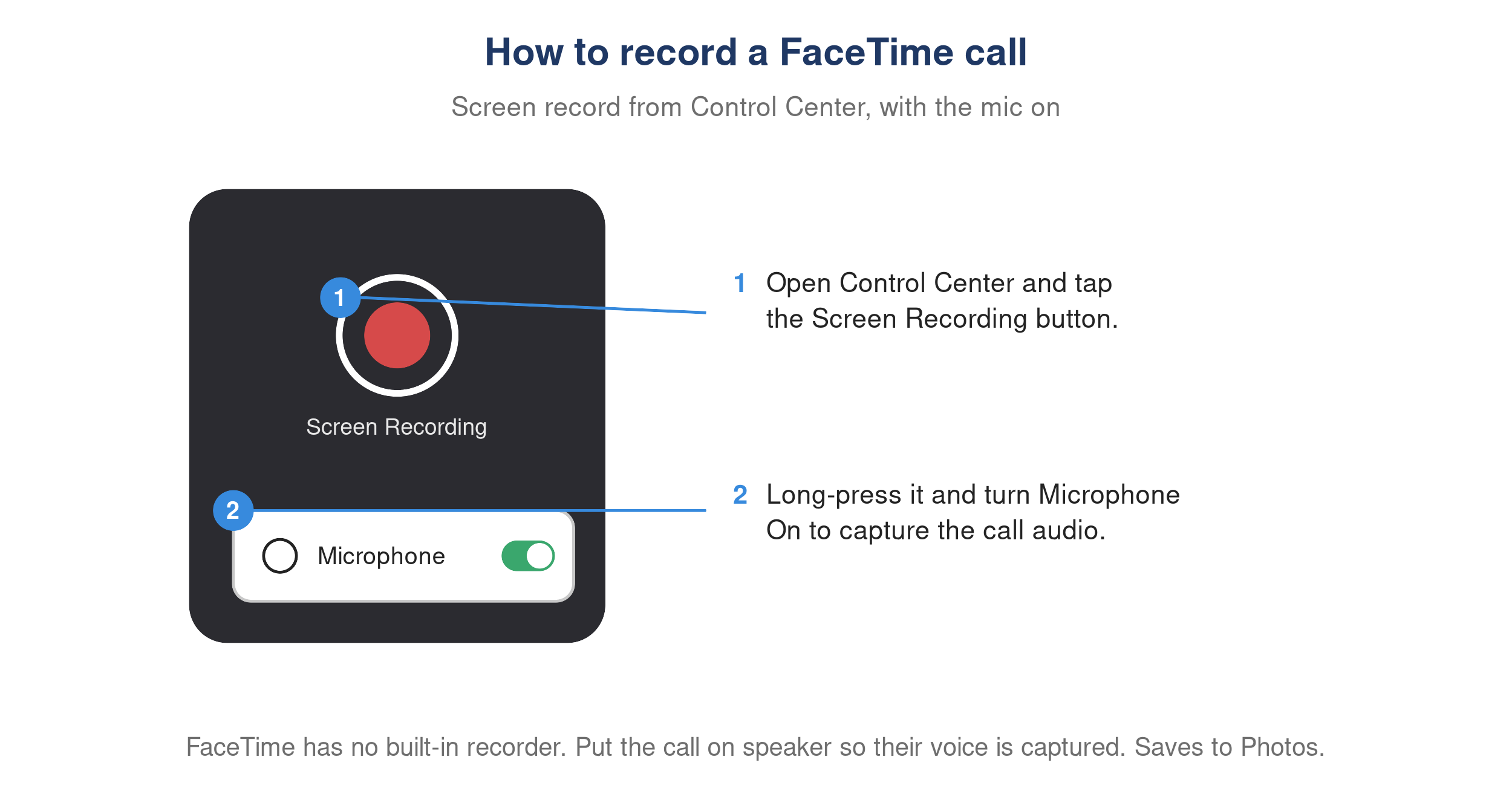
iPhone Control Center showing the Screen Recording button with the microphone turned on.