How to Share Your Screen on Microsoft Teams (2026 Guide)
To share your screen on Microsoft Teams, join the meeting and click the Share icon in the meeting controls. Choose your whole screen, a single window, or PowerPoint Live, and turn on Include computer sound if you are sharing a video. Full steps are below for desktop, Mac, and mobile, how to present a PowerPoint, what to do when sharing will not work, and how to turn a one-time share into a video people can rewatch.
This video was made with Velo. No editing, no retakes.
Try it freeHow to share your screen on Microsoft Teams
- Join or start your meeting.
- Click the Share icon (the arrow inside a rectangle) in the meeting controls.
- Choose what to share: your whole Screen, a single Window, PowerPoint Live, or Microsoft Whiteboard.
- If you are sharing a video or anything with sound, turn on Include computer sound.
- To finish, click Stop sharing.
This is the same flow whether you want to share your screen, screen share, or present in a Teams meeting.
How to share a single window or your whole screen
Choose Window to show just one app while keeping the rest of your desktop private, which is best when you have messages or notes open. Choose Screen to share everything, which is best when you need to move between several apps during the demo.
How to present a PowerPoint in Teams
Click Share and choose PowerPoint Live instead of your screen. It shows your slides to the room while you keep your notes and a slide preview to yourself, and attendees can move through the deck at their own pace if you allow it. This is cleaner than sharing the PowerPoint window directly.
How to share computer sound on Teams
When you start sharing, turn on Include computer sound so audio from your screen reaches the meeting. This is essential when you share a video, since without it people see the picture but hear nothing.
How to share your screen on Teams on Mac or mobile
On a Mac, sharing works the same as on Windows, but the first time you share you may need to allow Teams to record your screen in System Settings, then Privacy and Security, then Screen Recording. On the mobile app, tap the three dots in the meeting controls, tap Share, then Share screen, and confirm the prompt. Tap Stop sharing when you are done.
Why can’t I share my screen on Teams?
If the Share button is missing or your screen shows as black, the usual causes are: the organizer has limited who can present, your Mac has not granted Teams screen-recording permission, or you are on the Teams web app in a browser other than Chrome or Edge. Check your presenter role, grant the permission, or switch browsers, then try again.
Turn a screen share into a video worth keeping
A live screen share is gone the moment the call ends, and anyone who missed it has to ask you to do it again. When you want the walkthrough to live on as a demo, a tutorial, or a training video, this is where Velo comes in:
- Record the walkthrough once, then upload it to Velo.
- Velo rebuilds it into a polished, narrated video that is trimmed, with auto-zoom on what matters.
- Need a change? Edit the script and regenerate. No re-recording.
- One click turns the same recording into a written doc for your help center or notes.
You present once. Velo turns it into something you can send to everyone who could not attend.
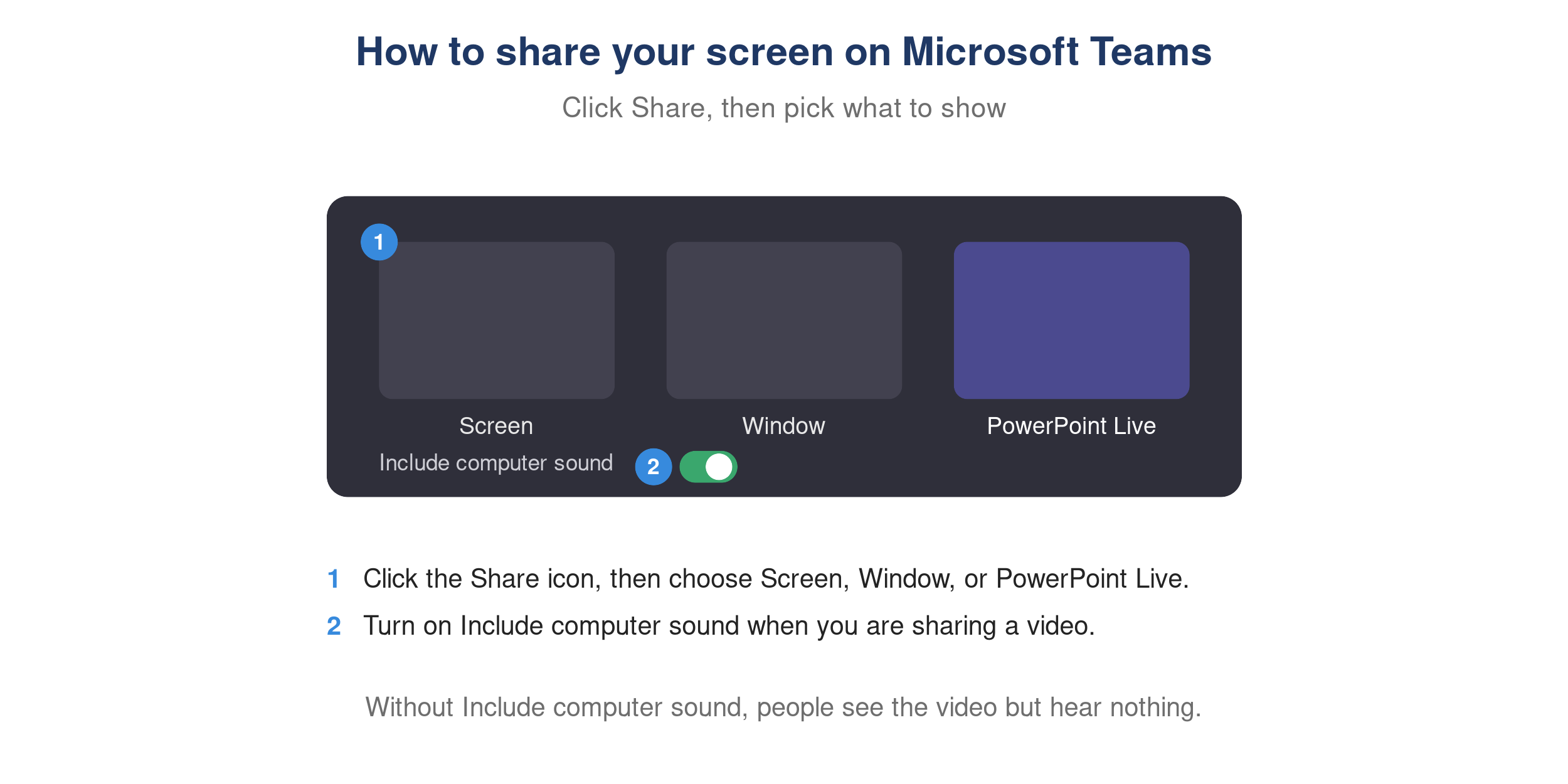
The Microsoft Teams share tray with Screen, Window, and PowerPoint Live options.