How to Update Product Videos Without Re-recording
Every SaaS team knows this moment. A button moves, a plan gets renamed, or onboarding loses a step, and suddenly the demo on your homepage is showing a product that no longer exists. In a traditional screen recording workflow, one small correction can mean another recording, another voiceover, another edit, another approval, and another upload.
You can update product videos without re-recording them, as long as the video is built to change. That means editable scripts, modular scenes, a clear source of truth, and hosting that lets you replace a file without breaking its link. You will still review every update, but you should not have to rebuild a full video for every release.
This guide covers the seven-step system, a decision table for choosing the right fix, when a full re-record is still the honest answer, and how AI video platforms like Velo handle the work.
Quick answer: treat product videos like maintained documentation
To update a product video without re-recording everything:
- Keep the script separate from the rendered video.
- Divide the video into short, independent scenes.
- Connect each scene to a source of truth, such as a help article or product workflow.
- Recreate only the narration and visuals affected by a change.
- Replace the published file without changing its embed wherever possible.
- Assign an owner and a review trigger to every important video.
The difference at a glance
| Re-record workflow | Maintainable workflow | |
|---|---|---|
| What a UI change triggers | A new recording of the whole video | A new version of one scene |
| Narration | Re-recorded or re-voiced in full | One script line edited and regenerated |
| Branding, music, intro and outro | Rebuilt in the new edit | Untouched |
| Approval | The full video goes back through review | Reviewers check only what changed |
| Published link | Often a new file and a new URL | Same link, same embed, new content |
| Typical outcome | Updates get postponed, old videos stay live | Updates ship with the release |
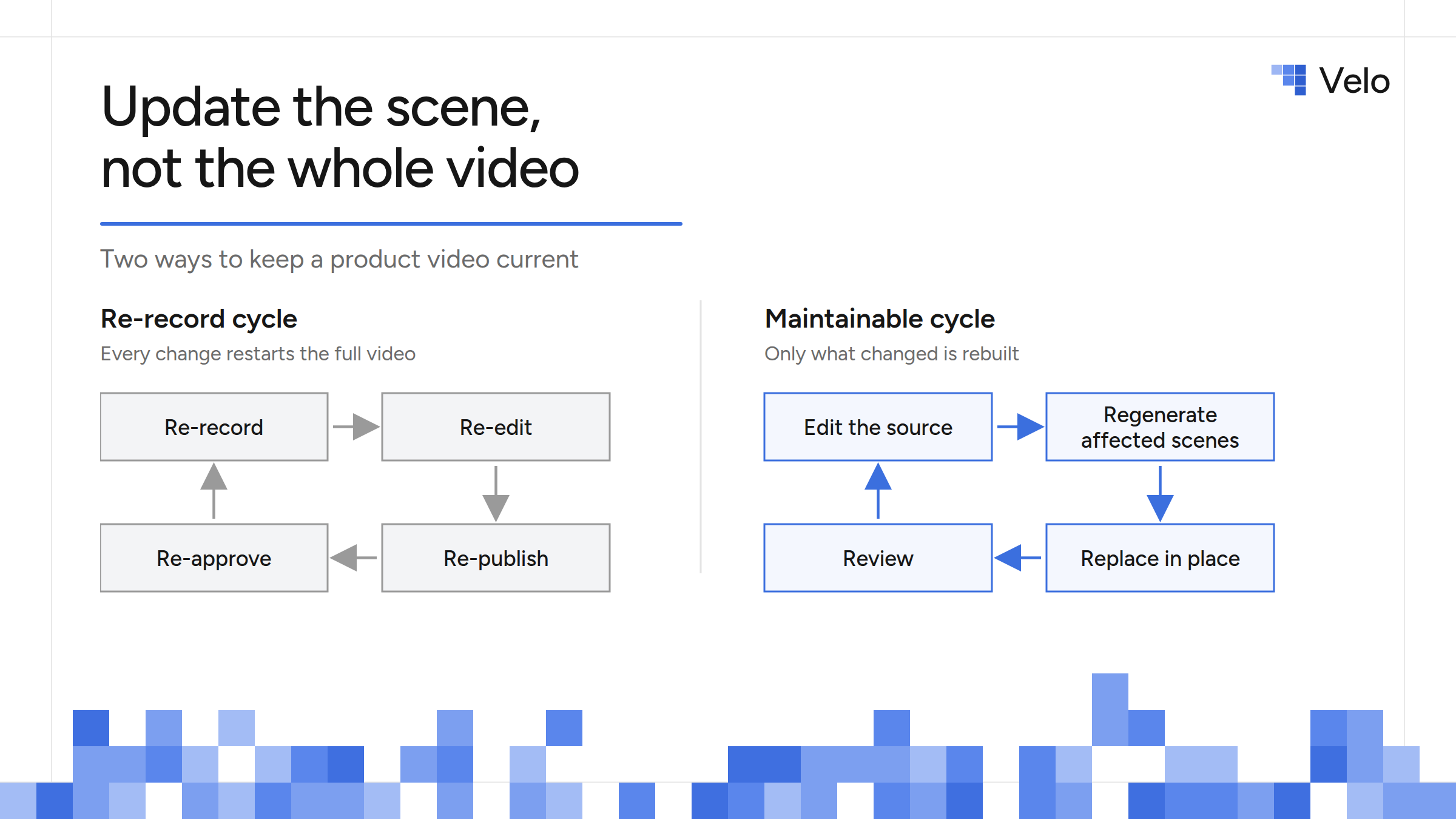
What does “updating a product video without re-recording” mean?
Updating a product video without re-recording means changing only the parts of a published video that are no longer accurate (a screen, a step, a narration line, a label, or a call to action) while keeping every approved part as it is. Instead of treating the video as one fixed file, you treat it as a set of editable pieces: a script, scenes, voiceover, music, and brand elements, each of which can be replaced on its own.
Why product videos go out of date so quickly
Product videos usually go out of date for one of four reasons:
- Interface changes: buttons move, labels change, and navigation gets reorganized.
- Workflow changes: a five-step process becomes three steps, or a new approval stage is added.
- Information changes: pricing, limits, integrations, security details, or policies are revised.
- Positioning changes: the product works the same way, but the audience, problem, or message shifts.
A traditional screen recording bakes visuals, timing, narration, and message into one continuous file. When one element goes stale, the whole video feels broken, so the team either pays for a full redo or leaves the outdated version live. That is why the recording method, not the change itself, creates most of the maintenance cost. We see the same pattern in why demos fall out of date so often in fast-shipping SaaS teams.
The goal is not to stop recording. It is to make the smallest accurate update possible.
Seven steps to keep product videos current
1. Give every video a source of truth
Choose the document or system that decides whether the video is accurate. It might be a help center article, an SOP, a product requirements doc, a release note, or the live workflow itself.
Record that source in the video brief. Without one, reviewers rely on memory, and outdated videos start confirming each other.
| Field | Example |
|---|---|
| Video | Invite a teammate |
| Source of truth | Help article: Manage workspace members |
| Product owner | Collaboration PM |
| Video owner | Customer education |
| Review trigger | Any permissions or navigation release |
| Last verified | October 1, 2026 |
When the source changes, the video goes into review.
2. Keep the narration as editable text
Never let the spoken audio be the only copy of your message. Save the approved script as text and map each paragraph to its visual scene.
An editable script makes these updates quick:
- Correcting a product name or feature label
- Changing a claim or call to action
- Reordering steps
- Generating a new voiceover line
- Translating the video into other languages without re-recording each one
If your video starts from a handbook, SOP, or help article, a document-to-video workflow keeps the link between the written source and the finished video, so updating the doc is the first step to updating the video.
3. Build the video in modular scenes
One scene should communicate one action or idea. A product walkthrough might have separate scenes for opening settings, choosing a plan, inviting a user, assigning a role, and confirming the invitation.
When the role selector changes, only that scene needs new visuals. The opening, context, and confirmation stay exactly as approved.
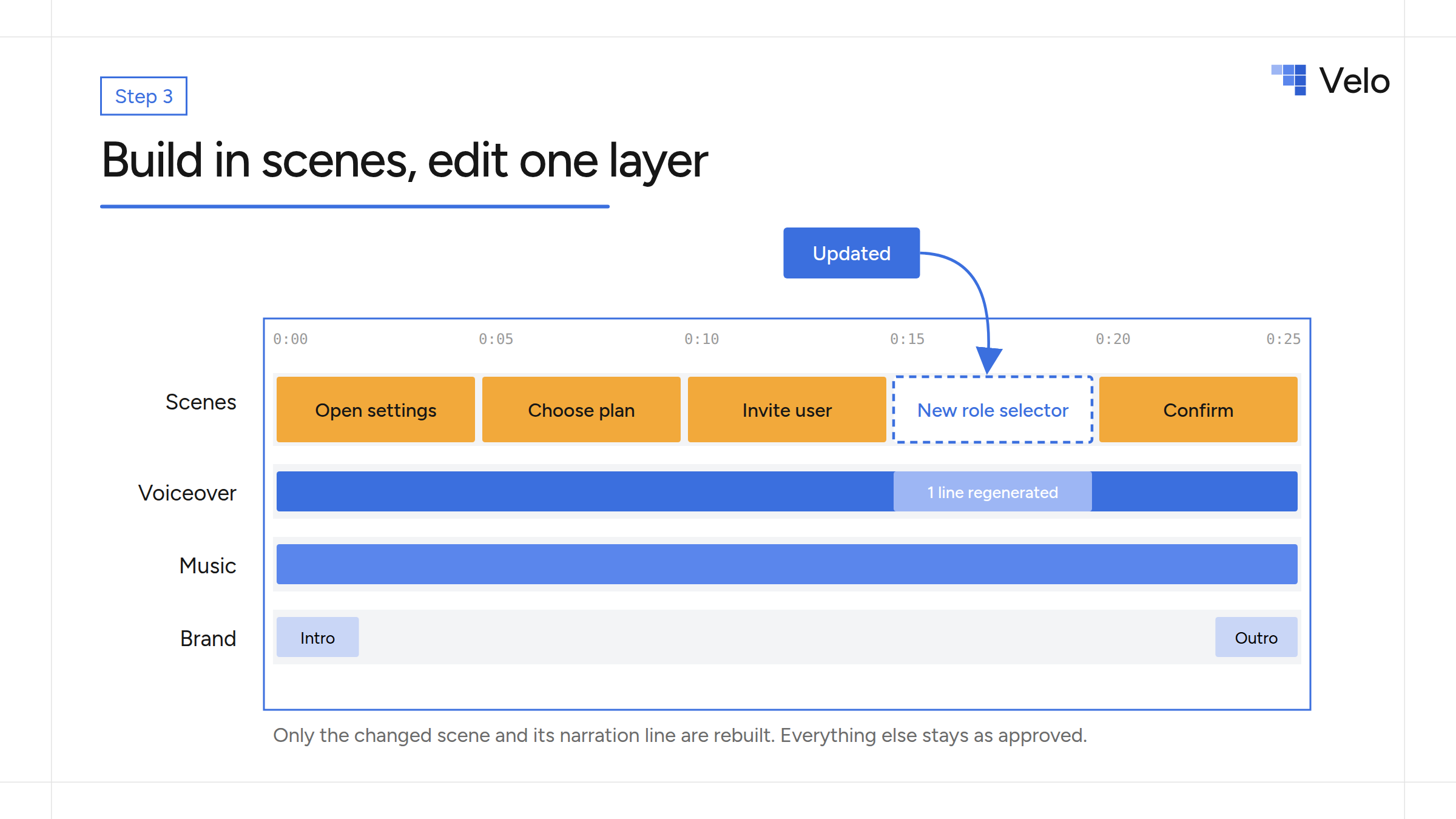 Product video timeline with one scene and one narration line updated while the rest stays unchanged
Keep scenes short enough to replace on their own, but not so short that the video feels choppy. A good scene boundary is any point where the purpose, screen, speaker, or action changes.
4. Capture product visuals you can replace
Avoid long continuous takes for anything likely to change. Capture the product in short steps, or use a tool that can reproduce the interaction on demand.
Then keep product footage separate from elements that rarely change:
- Voiceover
- Background music
- Intro and outro
- Brand frames, logos, and colors
- Titles and annotations
- Presenter or AI avatar footage
This separation stops a small UI change from forcing a new voice performance, new branding work, and a full re-edit. If you use an AI avatar presenter, the same rule applies: edit the line that changed and regenerate only that segment.
5. Match the update method to the change
Not every correction needs the same response.
| What changed? | Best update method | Usually keep |
|---|---|---|
| One label or short line | Edit the text and regenerate that narration line | All visuals that are still accurate |
| One screen or interaction | Replace the affected scene | Script, other scenes, music, branding |
| Several connected workflow steps | Re-capture that workflow section | Intro, outcome, reusable brand scenes |
| Core positioning or audience | Rewrite and restructure the video | Only assets that still support the new story |
| The entire product experience | Produce a new version | Archive the old version for reference |
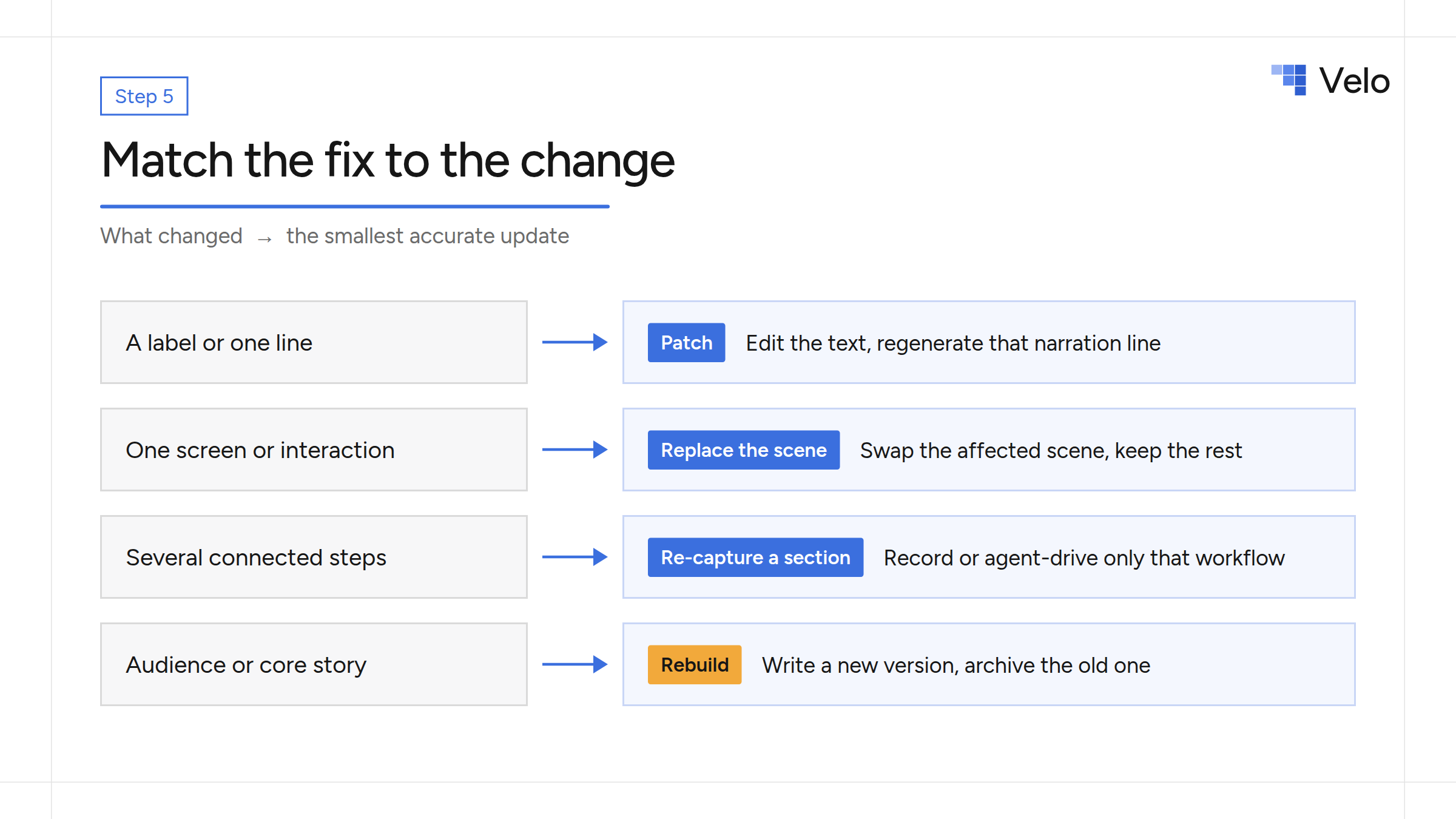
The rule is simple: patch a local change, rebuild a structural change, and never keep an inaccurate scene just to save time.
6. Replace the published version without breaking distribution
Updating the file is only half the job. Product videos live on landing pages, in help centers, onboarding emails, sales sequences, learning systems, and internal docs.
Wherever you can, use hosting that lets you swap the video while keeping the same link or embed:
- Wistia: Replace Media keeps the original media ID, so existing embeds and links keep working and show the new content.
- Vimeo: supports replacing a video file without breaking URLs or embeds, with version history for earlier cuts.
- YouTube: works differently. Per YouTube Help, you can’t replace a video, and any new upload gets a new URL. If YouTube is your main destination, plan to update every important link and add a note on the old video pointing to the new one.
Keep a distribution list next to each video record so the owner knows every place the asset appears.
7. Tie video reviews to product releases
Don’t rely on someone remembering to check the video later. Add one question to your release checklist:
Does this release change a workflow, screen, claim, or policy shown in an existing video?
If yes, create a video update task before the release is closed.
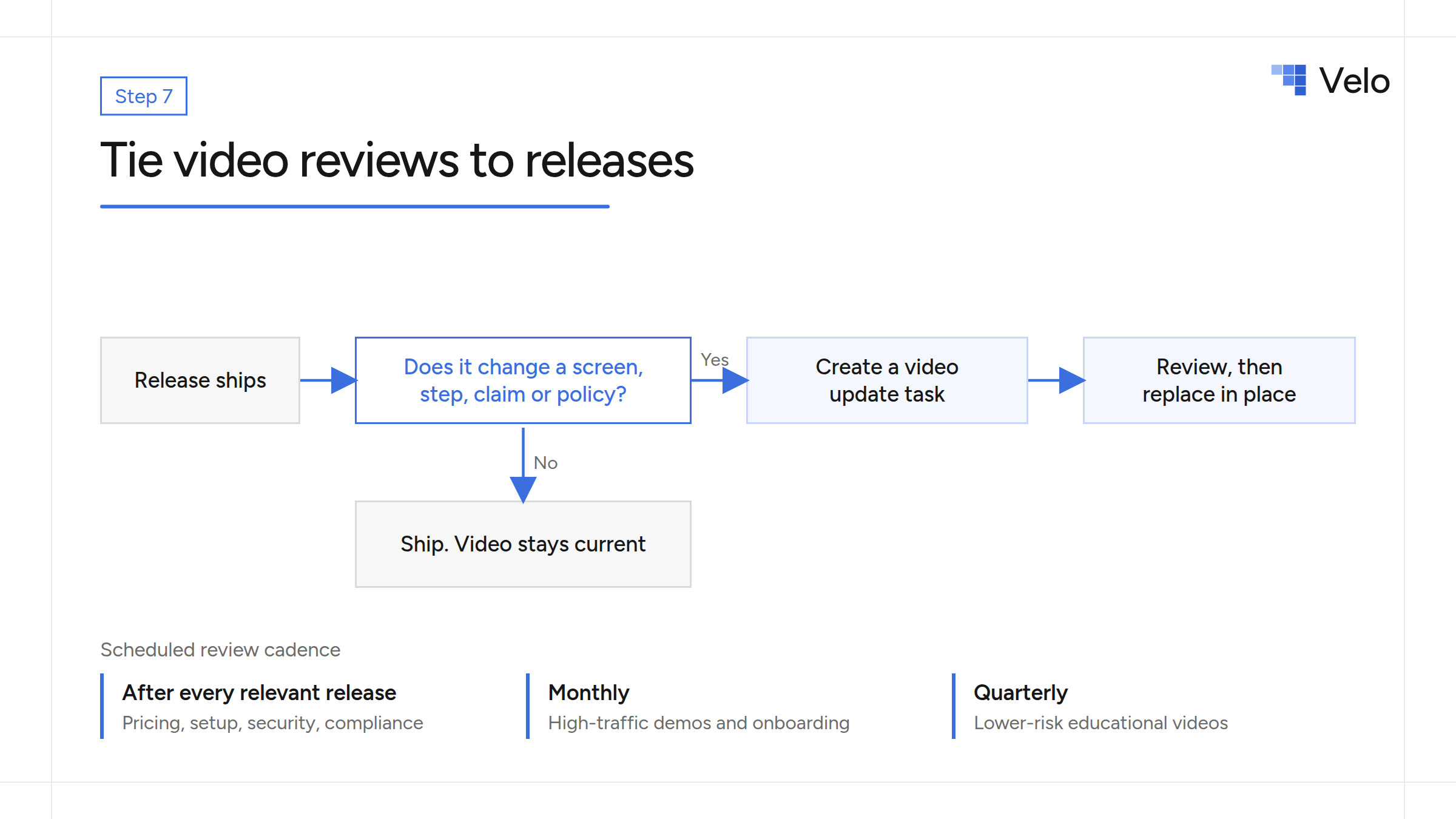
Release process that triggers a product video update task, with a review cadence by video type
High-risk videos, such as pricing, compliance, setup, and security instructions, also need a scheduled review. A practical cadence:
- Review critical customer instructions after every relevant release.
- Review high-traffic product demos and onboarding videos monthly.
- Review lower-risk educational videos quarterly.
- Retire videos that no longer support an active workflow.
Re-record, patch, or regenerate?
Use the least disruptive method that still gives you an accurate result.
Patch the existing video when timing and visuals are still correct and only a title, caption, narration line, or call to action changed. This is usually the fastest fix.
Partially re-record the video when a visible interaction changed but most of the story still holds. Replace the affected scenes, then check the transitions and narration on either side.
Regenerate from the source when the video was built from an editable script, a document, or a repeatable product workflow. The tool rebuilds the affected narration and scenes while keeping the approved structure and branding.
Produce a new version when the audience, outcome, or core workflow has changed. Trying to save too much of an outdated story produces a confusing video, even if every individual screen is technically current.
How Velo keeps product videos current
Velo is an AI video platform for work. It turns your product and company context (a screen recording, a live product URL, a doc or deck, or a prompt) into narrated, on-brand videos, and keeps the script, scenes, and layers editable so you can update them later. It’s most useful when the same product story shows up across several demos, onboarding videos, support tutorials, or training videos and has to stay accurate across releases and languages.
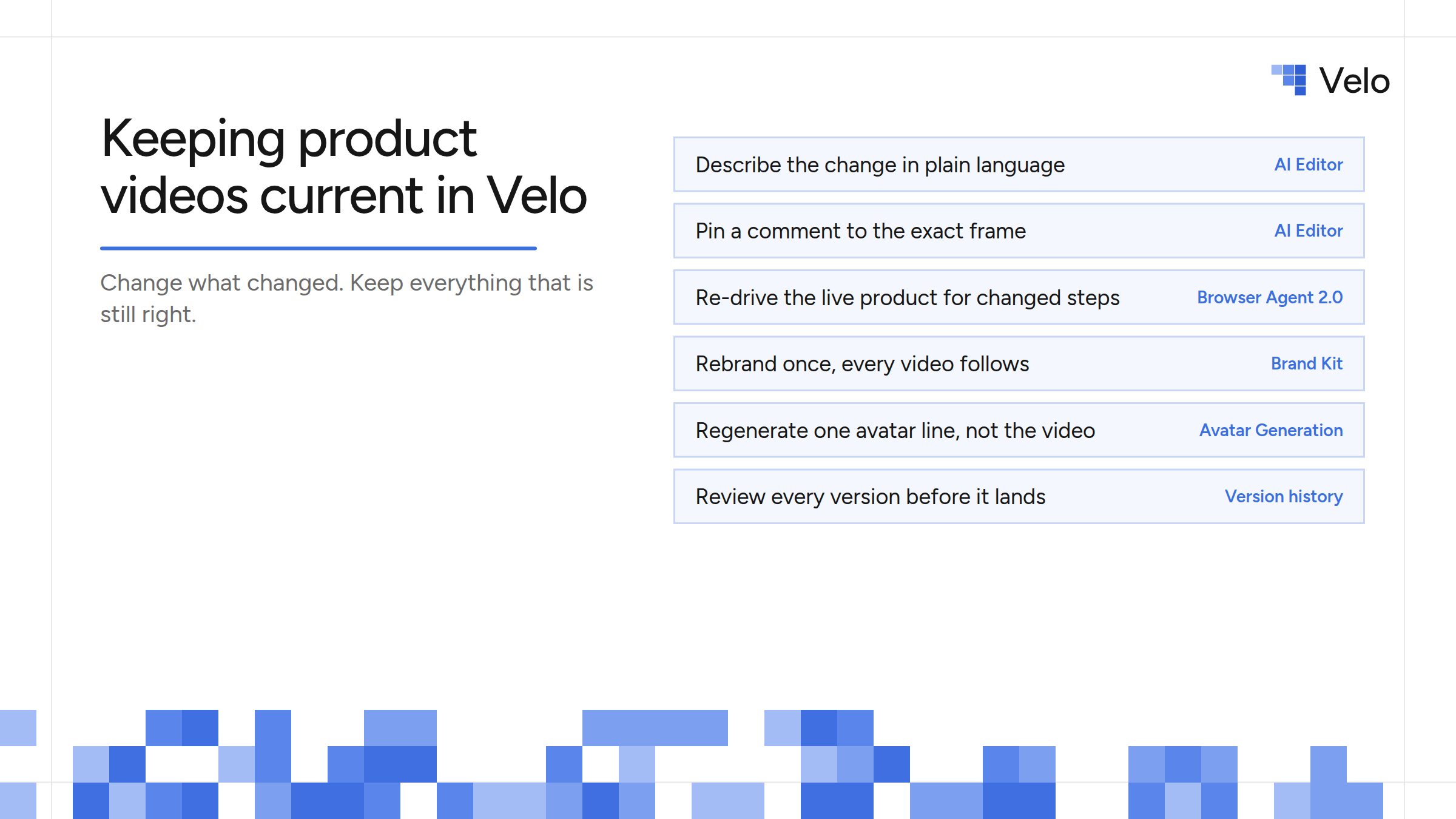
How Velo keeps product videos current: AI Editor, Browser Agent 2.0, Brand Kit, Avatar Generation and version history
Here is how each part of the system above maps to Velo:
- Edit in plain language or by hand. The AI Editor puts scenes, images, voiceover, and music on their own layers in one project. Describe the change (“update the plan name in scene four”) or pin a comment to the exact frame that needs it, and Velo updates that frame while every other scene stays as it was. You keep the full manual timeline for text, zooms, callouts, and intro and outro cards.
- Nothing lands without review. Every AI and manual edit is saved as its own version, you preview changes before accepting them, and any edit can be rolled back.
- Re-capture changed steps automatically. Browser Agent 2.0 drives your live product from a plain description, verifies each step, and cuts out waiting and retries. When the UI changes, it can re-drive just the affected workflow, and it hands control back to you for logins or sensitive steps.
- Keep demos tied to the product. Auto-updating demos connect a demo to the workflow it shows, so refreshing it doesn’t mean starting a new recording project.
- Rebrand once. Brand Kit pulls your logo, colors, fonts, and tone from your website and applies them to every new video. When the brand changes, you update the kit instead of re-editing each video.
- Update presenters and languages without reshoots. Avatar Generation regenerates only the edited segment of a presenter clip, and one-click translation turns the updated script into 25+ languages.
A person still has to verify the new path, claims, pronunciation, timing, and final output before publishing. If you only make the occasional one-off clip, this is more process than you need.
Proof from a Velo customer: in a published case study, import.io cut video turnaround time by 60%. In their words, “testing a different opening, swapping a call to action, or producing a variation for a different audience no longer meant starting from scratch.” That’s one customer’s result, not a guarantee.
If you’re still building your first demo, start with our guide on how to make a product demo video, then use this system to keep it current.
Product video maintenance checklist
Use this checklist whenever a release might affect video content.
Before production
- Identify the source of truth.
- Assign a product owner and a video owner.
- Write the script as editable text.
- Divide the story into replaceable scenes.
- Record every place the video will be published.
After a product change
- Identify every affected claim, screen, and step.
- Decide whether to patch, partially re-record, regenerate, or rebuild.
- Update the script before updating the visuals.
- Check the scenes on either side for broken transitions.
- Verify captions, translations, links, and calls to action.
- Replace the hosted version or update the distribution list.
- Record the new verification date.
Before republishing
- Walk through the workflow exactly as a new user would.
- Confirm that names, prices, permissions, and limits are current.
- Ask someone outside the production process to review the result.
- Archive or label the previous version.
Build videos that are designed to change
The fastest re-recording process is still a re-recording process. A maintainable system does the work before the next change arrives: editable scripts, modular scenes, clear sources of truth, stable distribution, named owners, and release-based review triggers.
Start with one high-traffic demo. Map its source, scenes, owner, and publishing locations, then update only the parts that no longer match the product.
Try Velo for free or book a demo to see how your team can update product videos without re-recording.