Best Screen Recording Software for Product Demos and Sales Videos in 2026
TL;DR: the best screen recording software in 2026
- Loom is best for fast asynchronous screen messages you record and send in minutes.
- Screen Studio is best for polished Mac recordings with automatic zooms and cursor smoothing.
- Velo is best for teams that want polished product demos, sales videos and onboarding walkthroughs from the same product context, built from a live browser session, a recording, a document or a prompt, and kept current after releases.
- Camtasia is best for detailed, manual tutorial editing.
- Vidyard and Sendspark are best for sales outreach, with prospect engagement, calls to action and personalization built around the recording.
The best screen recording software depends on what happens after you press Stop. Loom is the easiest choice for quick team or prospect messages. Screen Studio is strongest for polished Mac recordings. Camtasia gives editors more manual control. Vidyard and Sendspark support sales outreach. Velo is best when one team needs polished, narrated product demos and sales videos that can be reused, translated and updated, without editing skills.
This guide compares nine screen recording tools by recording workflow, editing depth, sales features, platform support and verified pricing.
Disclosure: Velo publishes this guide and is one of the tools covered. Prices were checked on each vendor’s official pricing page in October 2026.
The best screen recording software at a glance
| Tool | Best for | Standout feature | Main limitation | Starting price |
|---|---|---|---|---|
| Loom | Fast async screen messages | Instant sharing and viewer engagement | Limited control for polished, scene-based demos | Free; Business $18/user/mo |
| Screen Studio | Polished Mac product demos | Automatic zooms and cursor effects | macOS only | $29/mo, or $9/mo billed yearly |
| Tella | Browser-based recording and layouts | Transcript editing plus AI cleanup | Less precise than a full multitrack editor | $13/user/mo billed yearly |
| Velo | Polished demos, sales videos and onboarding from one source | Builds from product context and live browser workflows | Not a frame-by-frame editor | Free; Pro $49/mo |
| Camtasia | Detailed tutorial-style editing | Multitrack editing, cursor paths, annotations | More production work, steeper learning curve | Essentials $179.88/yr |
| Descript | Transcript-led video editing | Edit recordings by editing text | Not built for sales distribution | Free; Hobbyist $16/mo yearly |
| Vidyard | Sales video messaging and analytics | Sales CTAs and CRM-oriented workflows | Detailed demo editing needs another tool | Free; Starter $59/seat/mo yearly |
| Sendspark | Personalized outbound sales video | Dynamic backgrounds and voice personalization | Higher entry cost for a general recorder | $49/mo (7-day trial) |
| OBS Studio | Free, configurable local capture | Scenes, sources and audio controls | No built-in hosting or guided editing | Free and open source |
Prices are public list prices checked in October 2026. Annual discounts, taxes, add-ons and enterprise contracts can change the final cost.
What makes a screen recorder good for product demos and sales videos?
A product demo recorder must do more than capture pixels. It needs to keep interface detail readable, focus attention on the right action, produce clear narration and create an output that is easy to share or reuse. A sales video adds one more requirement: the viewer should know what to do next.
We evaluated each screen recording tool against six questions:
- Capture quality: Can it record the browser, desktop, system audio, microphone and camera at a useful resolution?
- Editing effort: Can a non-editor remove mistakes, dead air, filler words or irrelevant steps?
- Visual guidance: Does it support zooms, cursor emphasis, annotations, layouts or scene changes?
- Sales delivery: Can teams personalize, host, track, embed or add a call to action?
- Repeatability: Can the same workflow become a reusable product demo video instead of a one-off recording?
- Governance: Are branding, permissions, privacy and team libraries available when production scales?
The original angle in this comparison is the recording-to-reuse test. A good tool should not only capture one clean take. It should help a team turn the same product knowledge into a repeatable asset for sales, onboarding, training or support. Our breakdown of manual screen recording vs AI-generated video goes deeper on that trade-off.
How we evaluated the screen recording tools
We reviewed each vendor’s official product and pricing pages in October 2026. Every tool was assessed against the same scenario: create a three-minute SaaS walkthrough, remove one mistake, highlight two interface actions, add branding, share it with a prospect and understand whether the viewer engaged.
This was a documentation-based evaluation, not a claim that every product was tested in a paid workspace. Features that could not be confirmed on an official page were excluded. The prices below are the lowest public plan relevant to the use case, not always the cheapest plan a vendor lists.
1. Loom: best for quick screen recordings and async sales messages
Loom is the most straightforward choice when speed and sharing matter more than detailed post-production.
Best for: Sales reps, customer success managers, founders and distributed teams sending short screen-and-camera messages.
Pros:
- Records screen, camera, microphone and system audio with a familiar browser-first workflow.
- Generates a share link immediately, with comments, reactions, transcripts, captions and viewer insights.
- Business supports unlimited videos, unlimited recording time, uploads, downloads, basic trimming and custom branding.
- Business + AI adds summaries, chapters, filler-word removal, silence removal and transcript editing.
Limitations / trade-offs: Loom is optimized for communication rather than highly produced demos. A quick Loom can feel personal and credible, but a structured video with multiple scenes, controlled pacing, precise cursor motion or a reusable narrative usually needs another editor. Seat-based pricing grows with the number of creators.
Pricing: Starter is free (25 videos per person, five-minute recordings). Business is $18 per user per month ($15 billed yearly) and Business + AI is $24 ($20 billed yearly), per Loom pricing. Enterprise is custom.
Verdict: Choose Loom when the best sales video is the one a rep can record and send in the next five minutes. See Velo vs Loom for when a quick recording should become a reusable demo.
2. Screen Studio: best for polished Mac product demos
Screen Studio turns a standard Mac screen recording into a visually guided presentation with little editing.
Best for: Product marketers, founders, designers and creators who want polished product demos from macOS.
Pros:
- Automatically emphasizes actions with zooms, cursor movement and smooth framing.
- Exports up to 4K at 60 frames per second.
- Includes shareable links, cloud transcripts, project sharing and every feature on each plan.
- Processes the recording locally, which suits teams that prefer a desktop production workflow.
Limitations / trade-offs: Screen Studio requires macOS, so it is not a universal standard for Windows-heavy teams. It creates attractive screen-led videos, but it is not a sales engagement platform with CRM workflows, prospect personalization or account-level analytics, and it does not replace a full editor for complex scenes or detailed audio work.
Pricing: $29 per month, or $9 per month billed yearly, per Screen Studio. The vendor states that every feature is included in both plans.
Verdict: Choose Screen Studio when the product interface is the star and a Mac user needs polished motion without learning a full editor. Our best screen recorders for Mac guide compares more macOS options.
3. Tella: best for browser-based recording with flexible layouts
Tella combines an approachable recorder with layouts and AI-assisted editing that suit demos, presentations and camera-plus-screen videos.
Best for: Small teams that want more visual control than a basic async recorder without moving into a traditional editing suite.
Pros:
- Records screen, camera, microphone and system audio through native Mac and Windows apps or a Chrome extension.
- Timeline and transcript editing, automatic zooms, layout changes, silence removal, filler-word removal and audio enhancement.
- Exports up to 4K, with analytics and team collaboration on Pro.
- Premium adds 60 fps export, a custom domain and white labeling.
Limitations / trade-offs: Tella is easier than a full editing suite, but complex production still needs manual choices about clips, layouts and timing. Its sharing and analytics are useful, yet sales teams needing CRM-centered workflows or personalization at scale may prefer Vidyard or Sendspark. No permanent free plan is listed.
Pricing: Pro is $13 per user per month and Premium is $19 per user per month, both billed annually, per Tella pricing. Enterprise is custom.
Verdict: Choose Tella when you want a modern, flexible recorder and editor across browser, Mac and Windows. Our Tella alternatives guide covers when a different workflow fits better.
4. Velo: best for polished demos, sales videos and onboarding from one product source
Velo is an AI video platform for work that turns product context into polished, narrated videos for demos, sales, onboarding, training and support, and keeps them current.
Best for: Product marketing, sales enablement, customer success and support teams that need repeatable, on-brand videos rather than one-off screen messages.
Pros:
- Start from a screen recording or upload (MP4, MOV or WEBM, including Loom, QuickTime, OBS or Zoom files), a document or deck, a product page, a prompt or a live browser session. The Unified Agent builds any of these from one chat.
- Browser Agent 2.0 drives a real product workflow from a plain description and records clean, narrated footage, and auto-updating demos refresh it after a release.
- Polished screen recording adds automatic zooms, cursor smoothing and dead-air removal to a raw capture, and the AI Editor takes plain-language changes on a real timeline with version history.
- Record Yourself turns one teleprompter take into a multi-shot video that cuts between you and the product, and Avatar Generation v2 adds a reusable presenter when you’d rather not record.
- Brand Kit applies your logo, colors and fonts automatically, and videos can be translated into 25+ languages, hosted on branded share pages, tracked with analytics and turned into a written doc.
Limitations / trade-offs: Velo is not a frame-by-frame editor and is not designed for cinematic post-production. It is also not the best tool for a spontaneous one-to-one webcam message. Browser Agent may need a manual handoff for some login flows, and usage is metered by credits.
Pricing: Free is $0 with 1,500 credits a month (roughly 2 to 5 minutes of video). Pro is $49 per month ($41 billed yearly) and Ultra is $200 per month ($167 billed yearly). Enterprise is custom, per Velo pricing.
Verdict: Choose Velo when the same product knowledge has to become a polished demo, a sales video and an onboarding walkthrough, and stay accurate after the next release.
5. Camtasia: best for detailed tutorial and demo editing
Camtasia combines screen capture with a mature multitrack editor for teams that need granular control.
Best for: Trainers, enablement teams, technical educators and video creators producing longer tutorials or annotated demos.
Pros:
- 4K/60 fps capture, editable multitrack recordings, cursor paths, annotations, animations and transitions.
- Essentials includes text-based editing, filler-word removal, transcription, captions, audio effects, quizzes and SCORM export.
- Works on Windows and macOS.
- Gives an editor direct control over pacing and every visual layer.
Limitations / trade-offs: More control means more production time. Camtasia is an editor rather than a sales distribution system, so hosting, prospect engagement and CRM workflows may require other tools. The Starter plan’s editor is watermarked, making Essentials the realistic entry point for finished business videos.
Pricing: Starter is $39 per year, Essentials $179.88 per year, Create $249 per year and Pro $599 per year on the TechSmith store, all billed yearly.
Verdict: Choose Camtasia when editing precision and instructional features matter more than one-click production. See Velo vs Camtasia for the AI-first alternative.
6. Descript: best for editing screen recordings through text
Descript makes spoken video easier to revise by treating the transcript as the editing surface.
Best for: Teams that record narration-heavy demos, webinars, podcasts or sales presentations and want to edit the words first.
Pros:
- Cut video by deleting transcript text.
- Screen recording, transcription, captions, filler-word removal, Studio Sound and other AI cleanup tools.
- Creator supports 4K export and a larger monthly media allowance than Hobbyist.
- Useful for turning a long spoken recording into shorter clips or a tighter presentation.
Limitations / trade-offs: Descript is a general audio and video editor, not a product-aware demo builder or a sales engagement platform. Interface-led videos may still need manual zooms, callouts or fresh product footage, and AI features and media hours vary by plan.
Pricing: Free is $0. Hobbyist is $24 per person per month or $16 billed annually, Creator is $35 or $24 billed annually, and Business is $65 or $50 billed annually, per Descript pricing.
Verdict: Choose Descript when most editing decisions can be made by changing the transcript.
7. Vidyard: best for sales video messaging and engagement
Vidyard surrounds screen recording with sales-oriented hosting, calls to action, analytics and integrations.
Best for: SDR, account executive and revenue teams using video in prospecting and deal follow-up.
Pros:
- Screen and camera recording with sales-oriented sharing.
- Starter adds unlimited recording, full video analytics, team performance analytics and branded sharing.
- AI avatars and a Video Agent add-on for automated, personalized video creation and delivery.
- Deep integrations with tools such as Salesforce, HubSpot and Gong.
Limitations / trade-offs: Vidyard is strongest around sales engagement, not detailed product-demo editing, so teams often need a separate production tool for a structured walkthrough. Pricing is per seat, and the Video Agent is an add-on.
Pricing: Free is $0. Starter is $59 per seat per month billed annually (with a 14-day trial), and the Video Agent add-on is $24 per seat per month billed annually, per Vidyard pricing. Higher tiers are custom.
Verdict: Choose Vidyard when tracking and acting on prospect engagement matters more than polishing every frame. Our Vidyard alternatives guide compares other sales video tools.
8. Sendspark: best for AI-personalized outbound sales video
Sendspark is built to record one core sales video and personalize it across many prospects.
Best for: Outbound sales teams using video in scaled prospecting campaigns.
Pros:
- Dynamic video backgrounds, personalized thumbnails, AI voice cloning and name personalization.
- Integrations with HubSpot, Gmail, Outlook and LinkedIn on every plan, plus Salesforce, Outreach and API access on Growth.
- Agentic workflows that find a prospect’s website, generate the personalized video and send it.
- Avoids recording a new message for every recipient.
Limitations / trade-offs: Sendspark is a personalization platform rather than a general screen recorder. Its value is clearest in an outbound motion, so a product marketing team creating evergreen tutorials may pay for features it doesn’t need. Personalized minutes are metered by plan.
Pricing: Solo is $49 per month (one seat, 100 dynamic video minutes), Growth $99 (three seats), Team $299 (10 seats) and Business $699 (25 seats), billed monthly, with up to 40% off annually and a 7-day free trial, per Sendspark pricing.
Verdict: Choose Sendspark when one-to-many sales personalization is the main reason for recording video. Read our guide to personalized sales videos for how to plan them.
9. OBS Studio: best free recorder for configurable local capture
OBS Studio is a free, open-source application for recording and live streaming with flexible sources and scenes.
Best for: Technical users who need free local capture, multiple inputs or complete control over recording scenes.
Pros:
- Captures windows, displays, webcams, browser sources, images, text and audio.
- Unlimited scenes, transitions, hotkeys and per-source audio filters.
- Runs on Windows, macOS and Linux.
- No watermarks or usage limits, and it can be used commercially.
Limitations / trade-offs: OBS records well but doesn’t guide a business user through editing, branding, hosting, analytics or personalization, and the interface needs more setup than simple browser recorders. Many teams pair OBS with a separate editor and hosting platform.
Pricing: OBS Studio is free and open source.
Verdict: Choose OBS when capture flexibility and zero software cost matter and you already have a plan for editing and distribution. An OBS file can also be uploaded to an AI tool for polish later.
How to choose a screen recorder for your workflow
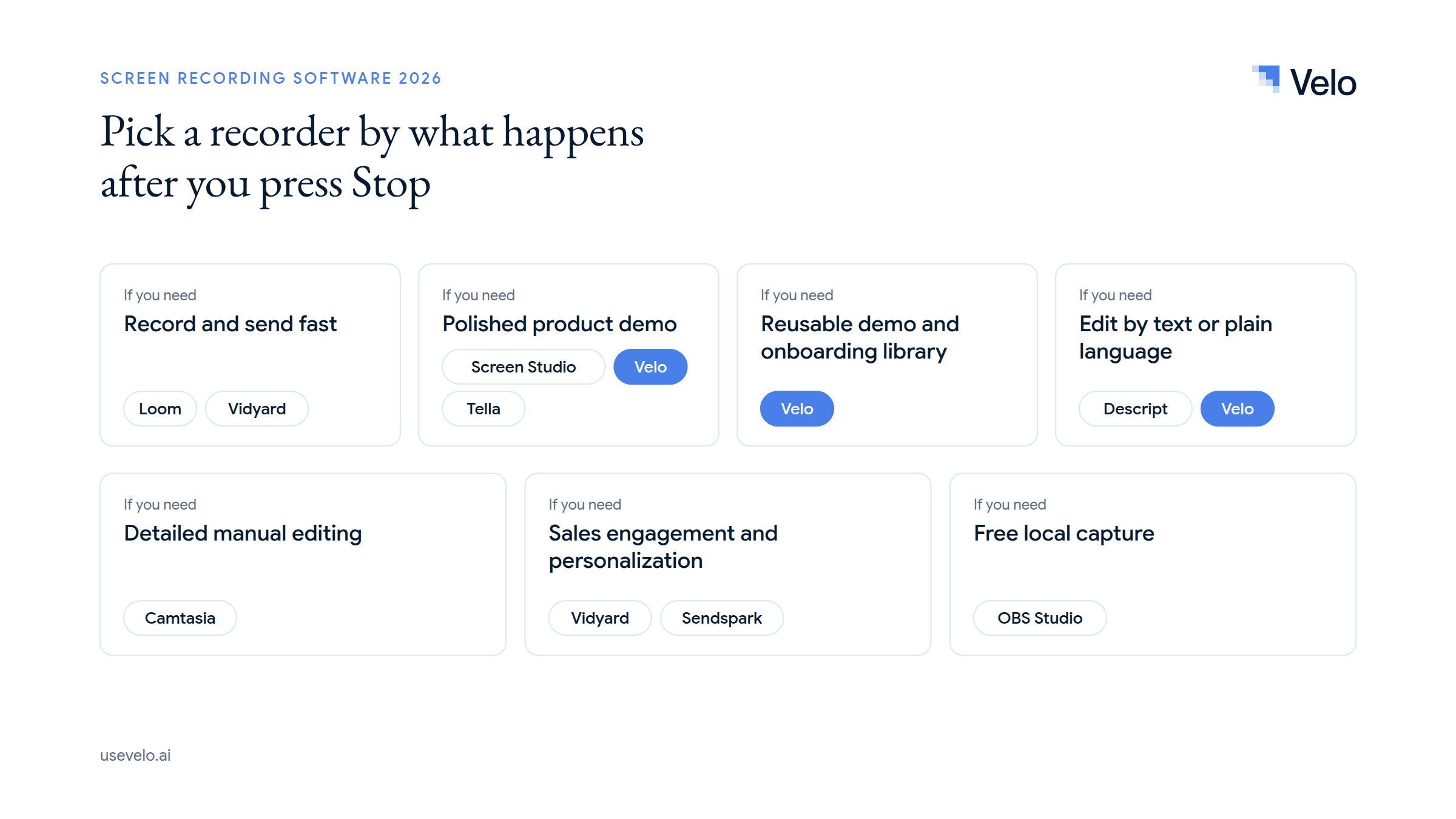
Some tools fit more than one job, so a team may land on the same tool for several of these:
- For a fast prospect follow-up: Loom, or Vidyard if you need sales analytics and CTAs.
- For a polished product demo: Screen Studio on Mac, or Velo when the demo should be narrated, on brand and built from a live product, a recording or a doc.
- For a reusable demo, onboarding or training library: Velo. One source becomes consistent videos for sales, onboarding and support, refreshed after releases. Camtasia suits teams that want to build each one by hand.
- For editing by text or plain language: Descript for transcript edits, or Velo’s AI Editor when you want to describe the change and keep a version history.
- For flexible layouts without a complex editor: Tella.
- For detailed tutorials with quizzes or SCORM: Camtasia.
- For scaled outbound personalization: Sendspark.
- For free, configurable local capture: OBS Studio.
The deciding question isn’t “Which recorder has the most features?” It’s “What must happen between the raw capture and the business result?” A recorder can be excellent at capture and still be the wrong system for editing, personalization, governance or reuse. For timing, see our guide to product demo video length.
The Velo way: one source, many finished product videos
A raw recording captures what one person did once. A reusable product video has to explain the right workflow to a defined audience, follow a clear narrative, match the brand and stay easy to revise.
Velo starts from the source a team already has: a screen recording stuck as an MP4, a deck, a document, a product page, a live browser workflow, a prompt or one real on-camera take. It uses that product context to structure the script, capture or reuse product footage, generate narration and captions, apply the brand and produce a finished video. The same project can then become a sales demo video, an onboarding walkthrough, a translated version or a written help doc.
Velo is less useful when a rep simply wants to send a personal webcam message, or when a professional editor needs control over every frame.
Choose the recorder around the outcome
The best screen recording software fits the complete workflow. Loom wins on speed, Screen Studio on polished Mac capture, Tella on approachable layouts, Camtasia on editing control, Vidyard and Sendspark on sales workflows, and OBS on free configurable recording.
Choose Velo when product context needs to become a consistent library of demos, sales videos, onboarding and support content. Try Velo for free or book a demo to see how the workflow fits your team.