What Is a Product Demo? Types, Scripts and Examples (2026)
A product demo is a guided presentation that shows how a product solves a specific problem. It may be delivered live, as a recorded video, through an interactive click-through or inside a sandbox environment. The right format depends on what the viewer needs to understand, how much control they need and where they are in the buying journey.
The strongest demos do not tour every menu or repeat a list of features. They take one audience from a recognizable problem to a meaningful outcome. This guide explains the four main product demo formats, how they differ from sales demos and product tours, how to write a product demo script and how to plan a demonstration that helps someone make a decision.
If the job calls for a repeatable recorded walkthrough, an AI video platform such as Velo can help a team turn product context or a browser workflow into a narrated demo that is easier to update. But the tool comes after the format decision. First, decide what the viewer needs from the demo.
Disclosure: Velo publishes this guide and makes AI product demo videos. The examples from other companies were checked on their public pages in November 2026.
TL;DR: product demos explained
- A product demo shows a product solving a real problem. It should demonstrate an outcome, not simply describe features.
- The four main delivery formats are live demos, recorded demo videos, interactive click-throughs and sandbox demos.
- A sales demo describes the purpose and audience of a demonstration. It is not a separate delivery format, and it may be live, recorded or interactive.
- A useful product demo focuses on one audience, one problem, one workflow and one next step.
- A strong product demo script follows Problem, Action, Result and Next step, and explains why each click matters.
- Use a live demo when conversation matters, a recorded video when consistency matters, an interactive demo when exploration matters and a sandbox when hands-on validation matters.
- Velo is best for teams that need recorded product demos built from their real product: narrated, on-brand, translated into 25+ languages and kept up to date after every release.
Table of contents
- What is a product demo?
- Product demo formats at a glance
- The four main types of product demos
- Product demo vs. sales demo vs. product tour
- How to choose the right product demo format
- How to create an effective product demo
- How to write a product demo script
- Real product demo examples
- Product demo best practices
- Product demo checklist
- The Velo way: video-first product demos
- Frequently asked questions
What is a product demo?
A product demo, short for product demonstration, is a guided experience that shows a product completing a relevant task or producing a desired result. Instead of saying what the product can do, the demonstration provides evidence by showing the product in action.
Put simply, the meaning of a product demo is proof: instead of telling someone what a product does, you show it doing the job. Product demos are used across the whole customer journey, from homepage videos and sales calls to onboarding and feature launches.
For a SaaS company, that might mean showing a sales manager how to turn a call transcript into a follow-up plan. For a design platform, it might mean demonstrating how a developer inspects a design and copies production-ready values. For a physical product, it could mean showing how the product is assembled, operated or maintained.
A product demo normally answers four questions:
- Who is this product or workflow for?
- What problem does it solve?
- What does the user do inside the product?
- What improves after the workflow is complete?
That last question is frequently missed. Showing that a button exists is not the same as demonstrating why pressing it matters.
What are product demos used for?
The purpose is to reduce uncertainty. A good demonstration helps a viewer understand whether the product is relevant, how it works and what using it would feel like.
Different demos reduce different kinds of uncertainty:
- A homepage demo helps a new visitor understand the product quickly.
- A sales demo connects the product to a prospect’s requirements.
- A technical demo shows whether the product can handle a specific workflow or environment.
- An onboarding demo helps a new customer reach a useful result.
- A feature demo explains what changed and how to use it.
The same product may need all five, but it should not force all five jobs into one video or presentation.
Product demo formats at a glance
| Product demo format | Best for | Viewer control | Main advantage | Main limitation |
|---|---|---|---|---|
| Live product demo | Discovery, complex sales and technical questions | Medium | Can adapt to the conversation | Difficult to repeat and scale consistently |
| Recorded demo video | Websites, launches, outreach and follow-ups | Low | Consistent, reusable and easy to share | Cannot respond to questions in real time |
| Interactive product demo | Self-guided evaluation and early product discovery | High | Lets viewers explore at their own pace | Usually a simplified or captured version of the product |
| Sandbox demo | Technical evaluation and hands-on validation | Very high | Provides a realistic product experience | Requires more setup, maintenance and guidance |
There is no universally best format. Choose the one that removes the viewer’s most important uncertainty with the least unnecessary friction.
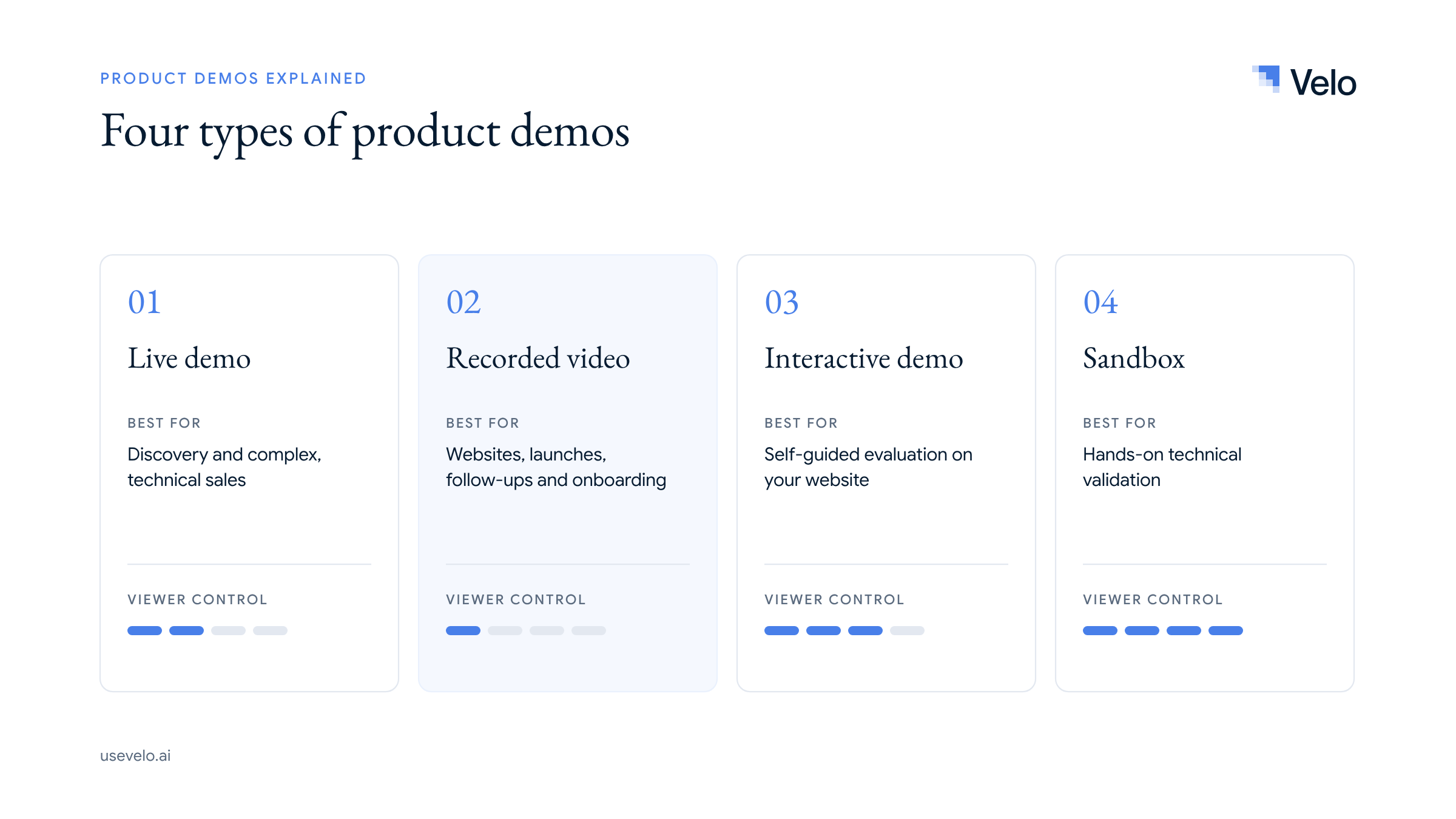
The four types of product demos compared by format, best use and how much control the viewer has.
The four main types of product demos
1. Live product demo
A live product demo is delivered in real time by a salesperson, founder, solutions consultant or product specialist. The presenter shares the product, explains a workflow and adjusts the session based on questions or feedback.
Live demonstrations are strongest when the product is complex or the buying decision depends on requirements that are difficult to anticipate. A presenter can skip irrelevant areas, investigate an objection and show a different path when the buyer reveals new information.
Use a live demo when:
- The deal is high-value or technically complex.
- The audience has role-specific questions.
- Discovery should shape what is shown.
- Several stakeholders need to discuss requirements together.
Watch for:
- Unreliable demo data or unstable environments
- Presenters talking for too long before showing the product
- Generic tours that ignore what was learned in discovery
- Different representatives telling inconsistent product stories
A live demo should feel responsive, but not improvised. Prepare a primary route, backup data and a clear next step before the call.
2. Recorded product demo video
A product demo video is a pre-recorded walkthrough that combines product footage with narration, captions and visual guidance. It controls the order, pacing and message, so every viewer sees the same explanation.
Recorded demos work well on product pages, in launch campaigns, in outbound messages and as follow-ups after a meeting. They are also useful before a live call. A short video can cover the common context in advance, leaving the meeting for questions and deeper evaluation.
Use a recorded demo video when:
- The same workflow must be explained repeatedly.
- The viewer should understand the product without booking a call.
- Consistent language, visuals and branding matter.
- The demo needs to be embedded, translated or shared asynchronously.
Watch for:
- UI text that is unreadable on smaller screens
- Long introductions before the product appears
- Narration that describes clicks without explaining their value
- Videos that become inaccurate after the interface changes
Recorded does not have to mean generic. Teams can create a reusable base demo, then adapt the opening, example data or closing action for different audiences.
3. Interactive product demo
An interactive product demo is a guided click-through that lets a viewer control the pace. It commonly uses captured screens or a simulated interface with hotspots, text prompts and branching paths.
This format sits between watching a video and entering the actual product. It gives the viewer something to do without requiring an account, installation or fully configured workspace.
Use an interactive demo when:
- Prospects want to explore independently.
- The product has a clear, repeatable path.
- Marketing wants a hands-on website experience.
- Several roles need different guided routes.
Watch for:
- Hotspots that teach clicking without explaining value
- Captured screens that no longer match the live interface
- Too many branches before the viewer understands the main outcome
- Presenting a simulation as though it were the complete product
If this is the format you need, compare the best interactive demo software. The guide also explains when a video-first alternative makes more sense than a click-through experience.
4. Sandbox demo
A sandbox gives a prospect temporary access to a working or controlled product environment. Unlike a captured interactive tour, the viewer can test actions, enter data and explore the product more freely.
Sandboxes are useful when a serious buyer needs proof that a product can support a technical or operational requirement. They are most common later in evaluation, once the buyer understands the basic value and wants to validate fit.
Use a sandbox when:
- Hands-on product experience is part of the evaluation.
- Technical users need to test realistic workflows.
- Product behavior cannot be demonstrated well through static captures.
- The prospect has enough context to explore without becoming lost.
Watch for:
- Empty environments that make the product look harder to use
- Sensitive or poorly isolated data
- No guidance on which workflow to test first
- Expensive setup for prospects who are not yet qualified
Seed the environment with realistic data and pair it with a short guide, recorded walkthrough or success criteria. Access alone is not a demonstration if the user does not know what to evaluate.
Product demo vs. sales demo vs. product tour
These terms overlap, but they do not mean exactly the same thing.
| Term | What it describes | Typical goal | Common format |
|---|---|---|---|
| Product demo | A product solving a problem | Prove relevance and capability | Live, recorded, interactive or sandbox |
| Sales demo | A demonstration used in a sales process | Move a qualified opportunity toward a decision | Usually live, but may also be recorded or interactive |
| Product tour | A guided introduction to an interface or feature set | Help someone discover or learn the product | In-app, interactive or video |
| Explainer video | A concise explanation of a problem, idea or value proposition | Build understanding and interest | Animated, live action, avatar-led or product-led video |
| Tutorial | Step-by-step instruction for completing a task | Help an existing user succeed | Video, article or in-app guidance |
A sales demo is therefore not a fifth delivery format. It describes the audience and commercial purpose. A sales demo may happen live on a call, arrive as a personalized video or be supported by an interactive walkthrough. For running the live version well, see our guide on how to conduct a sales demo.
An explainer video also has a different job. It can communicate why a category or solution matters without proving the workflow in detail. For a deeper comparison, see product video vs. explainer video.
How to choose the right product demo format
Start with the decision the viewer is trying to make, not the format your team already knows how to produce.
Choose a live demo when the conversation changes the content. If discovery, technical requirements or stakeholder questions determine what should be shown, use a live session. This is especially useful for enterprise sales and products with several possible workflows.
Choose a recorded video when the explanation should stay consistent. Use video when many people need the same focused story and do not need to interact with the interface. It is a good fit for website visitors, launch audiences, sales follow-ups and onboarding.
Choose an interactive demo when self-guided exploration builds confidence. Use a click-through experience when trying the flow is more persuasive than watching it. Keep the path short enough that the viewer reaches a meaningful outcome before losing context.
Choose a sandbox when realistic validation is necessary. Use a controlled environment when evaluators need to test real behavior. A sandbox is often too much friction for a first touch, but valuable for technical validation later.
Combine formats across the journey
The decision does not have to be either-or. A practical sequence might look like this:
- A 60-second recorded video introduces the core outcome.
- An interactive demo lets the prospect explore the main path.
- A live sales demo addresses specific requirements.
- A sandbox supports technical validation.
- Short tutorial videos help the new customer adopt the product.
Each asset should advance the buyer to the next question instead of repeating the same generic overview.
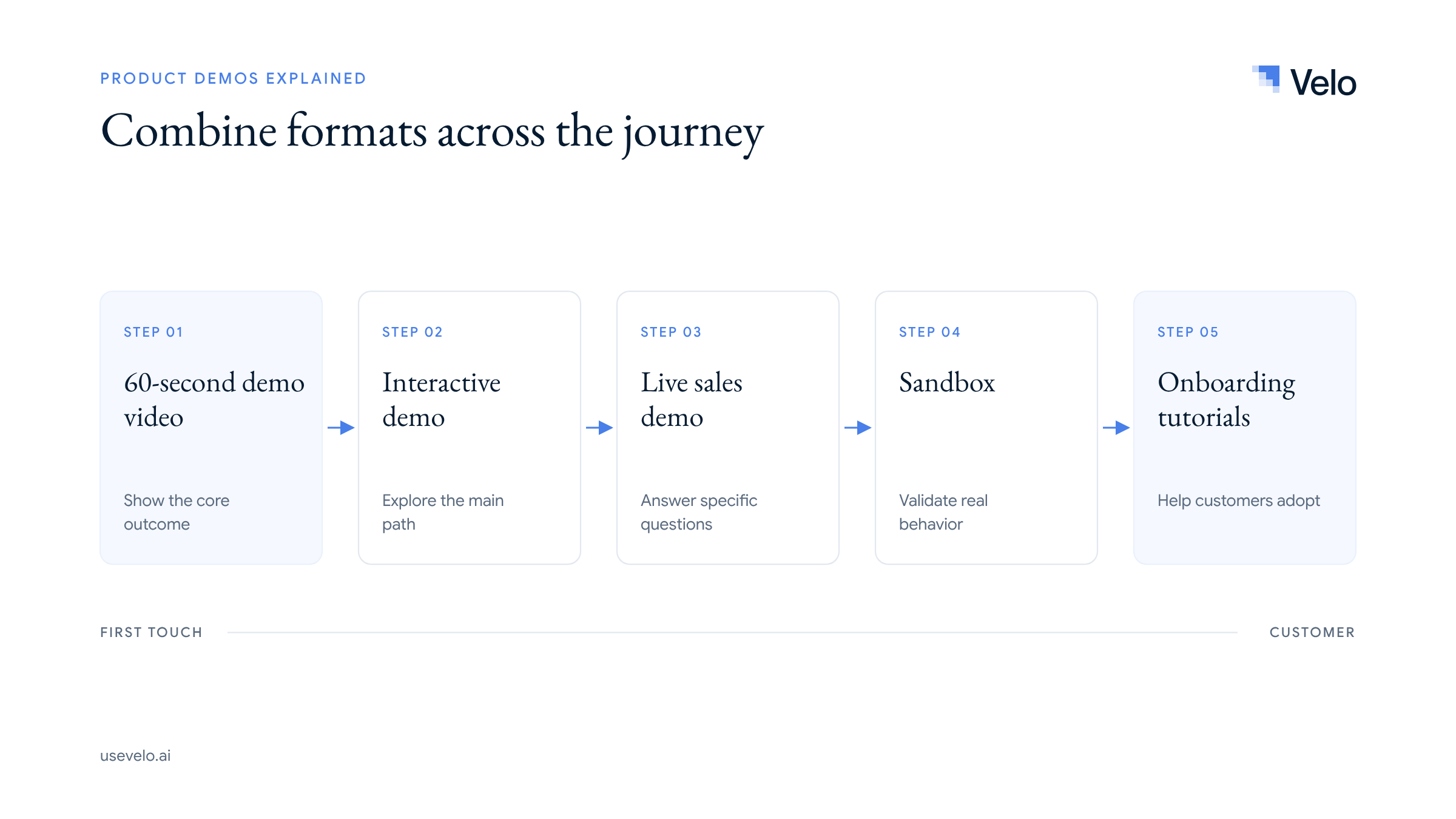
A product demo sequence across the buyer journey, from a short recorded video to onboarding tutorials.
How to create an effective product demo
1. Define the audience and decision
Write down who will watch the demo and what they should understand or do afterward.
“Prospects” is too broad. “Operations leaders evaluating whether they can automate weekly reporting” is specific enough to shape the workflow, language and proof.
2. Choose one problem and one outcome
Do not begin by listing features. Begin with a situation the viewer recognizes, then choose the shortest credible route from that problem to a result.
For example: a product marketing manager has a demo that became inaccurate after a release. They need to update the changed workflow without recording and editing the entire video again.
That scenario gives the demonstration a clear boundary. Anything unrelated can move to another asset.
3. Select the format based on the viewer’s need
Use the comparison above to decide whether the viewer needs conversation, consistent explanation, guided exploration or hands-on validation.
Do not turn a live call into a webinar when the buyer needs discussion. Do not require a meeting when a two-minute recorded demo can answer the question.
4. Prepare a clean demonstration environment
For software demos, remove personal data, irrelevant notifications, unfinished features and confusing test records. Use realistic sample data that makes the workflow understandable.
For live sessions, prepare a backup route in case a dependency fails. For recorded demos, capture at a resolution that keeps interface text readable after the video is embedded.
5. Write the story before recording
Plan the narration and visual action together. The script should explain why each important step matters, not simply announce what the cursor is doing. The next section walks through how to write it.
6. Produce for clarity, not decoration
Use zooms, callouts or cursor emphasis when they direct attention to something important. Add captions for viewers watching without sound and check that labels remain readable on a laptop and phone.
Transitions and motion should clarify a change in scene or idea. If an effect competes with the interface, remove it.
7. Review for accuracy and action
Before publishing, ask someone who matches the intended audience to watch the demo without additional context. Can they explain the problem the product solved, the workflow they saw, the result and the next step?
Also verify every interface label, product claim and example result. A polished demo that shows an outdated workflow reduces trust rather than building it.
How to write a product demo script
Writing a product demo script (sometimes called a product demonstration script) is less about deciding what to say and more about deciding what to leave out. Use these five steps.
Step 1: Start with a real scenario
Before you record anything, finish this sentence: “This demo is for someone who…”
- “…runs a small marketing team and struggles to track campaign performance.”
- “…manages client projects and keeps losing track of deadlines.”
- “…needs to generate reports without exporting data manually.”
If you cannot describe who the demo is for and what situation they are in, the script will drift into a feature tour.
Step 2: Pick one workflow from start to finish
Resist the urge to show the dashboard, settings, integrations and analytics in one go. “I’ll show you the whole platform” is a weak promise. “I’ll show you how to create a campaign, track results and export a report” is a strong one. If viewers understand one core workflow clearly, they assume the rest is easy too.
Step 3: Use Problem, Action, Result, Next step
- Problem: “Managing tasks across Slack and spreadsheets gets messy fast.”
- Action: “Inside the app, I create a project, assign tasks and set deadlines in one place.”
- Result: “Now the whole team sees updates in real time, and nothing slips through the cracks.”
- Next step: “Start a free trial and set up your first project in five minutes.”
Notice that the script describes impact, not buttons.
Step 4: Write like you’re explaining to one person
Instead of “Our platform leverages automation to optimize operational efficiency,” say “This saves you time because you don’t have to update everything by hand.” If a line sounds like marketing copy, rewrite it.
Step 5: Cut 20 to 30 percent
After the first draft, remove anything that doesn’t help the viewer understand the workflow. Good demos feel simple because they are edited aggressively.
A 60-second product demo script example
Here is a concise 60-second example for a fictional reporting product:
| Time | Purpose | Example narration | Visual direction |
|---|---|---|---|
| 0 to 8 seconds | Problem | ”Your team updates the same weekly report across three spreadsheets, and one late number can hold up the entire review.” | Show disconnected spreadsheets and a delayed status |
| 8 to 18 seconds | Promise | ”With Northstar, the report updates from the systems your team already uses.” | Open the Northstar reporting workspace |
| 18 to 43 seconds | Action | ”Connect the data sources once, choose the weekly template and assign each owner. Northstar pulls the latest numbers and flags anything still missing.” | Show the three key actions in the product |
| 43 to 53 seconds | Result | ”Now the team sees one current report, while the operations lead sees exactly what still needs attention.” | Show the completed report and one clear flag |
| 53 to 60 seconds | Next step | ”Create your first weekly report from the template, or book a working session for a custom workflow.” | Show one primary CTA |
The language is specific enough to feel real, but the script does not attempt to explain every setting. The viewer sees one complete path from friction to result.
For a copyable scene-by-scene structure, use this product demo template or the broader free video script templates.
Real product demo examples
These examples use different formats, but each gives the viewer a clear way into the product.
1. Slack: a recorded demo organized around work outcomes
Slack’s demo page leads with outcomes such as working with agents and AI-ready workflows, getting answers with AI search, working with internal teams and external partners, and surfacing CRM data in conversations. It does not begin with an exhaustive tour of channels, settings and menus. Viewers fill in a short form to watch.
Why it works:
- The page explains what the viewer will learn before asking them to watch.
- Product capabilities are grouped around recognizable jobs.
- The demonstration is supported by shorter tutorials for people who need task-level instruction.
What to borrow: organize a broad product around three or four user outcomes instead of presenting a flat feature inventory.
2. Figma: an on-demand demo library segmented by role and use case
Figma’s demo library separates demonstrations by topic, such as design systems, administration and scaling a design system across teams. A design leader does not have to sit through the same route as an engineer or an admin.
Why it works:
- Viewers can select the demo closest to their role.
- Each demonstration has a narrower promise than a single company-wide overview.
- The library supports both broad discovery and deeper evaluation.
What to borrow: build a modular demo library when different roles care about different outcomes. Do not force every stakeholder into one long master demo.
3. Notion: self-guided product tours by use case
The Notion Demo Hub lets visitors pick a use case and explore it on their own time. The entry point is the work someone wants to accomplish, such as building a project reporting agent or turning a brainstorm into a roadmap, rather than a generic tour of the workspace.
Why it works:
- The viewer controls when and where to explore.
- Use-case labels make a flexible product easier to understand.
- The hub reduces the distance between curiosity and product interaction.
What to borrow: if your product supports many workflows, let the viewer select a relevant path before showing the interface.
4. Webflow: a focused demo placed beside the feature decision
Webflow puts a short product video at the top of its page building feature page, right next to the claim it supports: teams can create on-brand pages faster with drag-and-drop building.
Why it works:
- The demonstration appears in the context of a specific capability.
- The promise is clear before the viewer presses play.
- The video supports a product decision instead of living in an isolated resource center.
What to borrow: place a focused demonstration near the claim it proves. A strong demo should not always require someone to find a separate demo page.
For more, see our breakdown of product demo video examples you can recreate.
Product demo best practices
Show the product early. Give the viewer enough context to understand the problem, then move into the product. Long company histories and category explanations delay the evidence they came to see.
Demonstrate one complete outcome. A coherent workflow is easier to remember than a sequence of disconnected features. If a feature does not help complete the promised outcome, leave it for another demo.
Explain why, not only where. “Click Export” describes an interface action. “Export the approved report so finance receives the same numbers the team reviewed” explains why the action matters.
Match depth to the viewer’s stage. A first-time website visitor needs a fast understanding of value. A technical evaluator may need implementation detail, permissions and edge cases. Trying to satisfy both in one demonstration usually produces a poor experience for each.
Use realistic data. Empty dashboards and placeholder records make the product harder to understand. Use sample names, metrics and states that support the story without exposing customer or personal information.
Keep the interface readable. Frame the relevant area, enlarge small details and avoid rapid cursor movement. Test the final output at its actual embed size, not only in a full-screen editor.
Keep it as short as the job allows. One workflow usually fits in 60 to 180 seconds. See our guide to product demo video length for benchmarks by use case.
End with one appropriate next step. The next action should match the viewer’s stage. It may be starting a trial, exploring an interactive demo, watching a deeper workflow or booking a technical conversation. Do not present four equally prominent calls to action.
Plan for updates before publishing. Products change. Keep the script, source footage, brand assets and approval owner easy to locate. Record workflows in modular scenes so one changed screen does not force a complete rebuild.
Product demo checklist
Run every demo through these questions before you publish or present it:
- Audience: is it clear who this demo is for, and is the problem specific and real?
- One workflow: does it show one complete workflow without jumping between unrelated features?
- Structure: does it state the problem, show the actions and make the result visible?
- Language: is it free of jargon, as if you were explaining it to one person?
- Length: is it as short as possible while still complete?
- Visuals: is the cursor movement intentional and the interface text readable at embed size?
- Accuracy: do every label, claim and number match the current product?
- Next step: is there exactly one clear call to action?
- Clarity test: could a new viewer explain what the product does in one sentence?
The Velo way: video-first product demos
Velo is an AI video platform for teams that need a polished, narrated product walkthrough rather than a clickable simulation or an open sandbox.
You start with what you already have, or with nothing at all:
- Describe the demo to the Unified Agent, which asks a few questions and picks the right way to build it.
- Let Browser Agent 2.0 click through your live product and capture the workflow, or bring an existing screen recording, URL, deck, document or screenshots.
- Velo writes the script, adds narration, captions and zooms, and applies your logo, fonts and colors with Brand Kit.
- Add a real presenter with Record Yourself], or an AI presenter with Avatar Generation.
- Fix any line, scene or the pacing by typing the change into the AI Editor.
This approach is useful for website product demos, feature and launch walkthroughs, personalized sales follow-ups, customer onboarding videos, help-center explanations and multilingual versions of an approved demo in 25+ languages with multilingual output.
The maintenance workflow matters as much as the initial creation. When the interface changes, auto-updating demos refresh the affected scenes instead of turning every revision into a new production project, and video to doc turns the same demo into a written help article.
This approach does not replace every format in this guide. Use a live session when discovery and questions are central. Use dedicated interactive demo software when the viewer should click through a simulation. Use a sandbox when the buyer must test the actual environment.
When a controlled video is the right format, see how teams use Velo for product demos.
Build the demo around the decision
A strong product demo does not prove how many features a product has. It proves that a specific audience can move from a real problem to a useful result.
Choose the format based on what the viewer needs: conversation, consistent explanation, guided exploration or hands-on validation. Then keep the story focused on one outcome and make the next step obvious.
If a reusable recorded walkthrough is the right format, try Velo for free or book a demo.
About the author
Ritu Parakh is Growth Lead at Velo, the AI video platform for work. She writes practical guides for teams using video to explain products, onboard customers and sell more clearly. Connect with her on LinkedIn.