Free Video Script Templates: Demo, Explainer & Training
A useful video script tells two stories at once: what the audience hears and what it sees. The free video script templates below give you both. Copy the tables into a document or use the downloadable Word template to plan a product demo, explainer, or training video scene by scene, complete with timing, narration, visual direction, and production notes.
What you get
- A universal audio-visual video script format
- Copyable product demo, explainer, and training video script templates
- Recommended timing and word-count ranges
- Filled examples that show how each structure works
- A downloadable, editable Word template
Download: Free Video Script Templates (Demo, Explainer & Training)
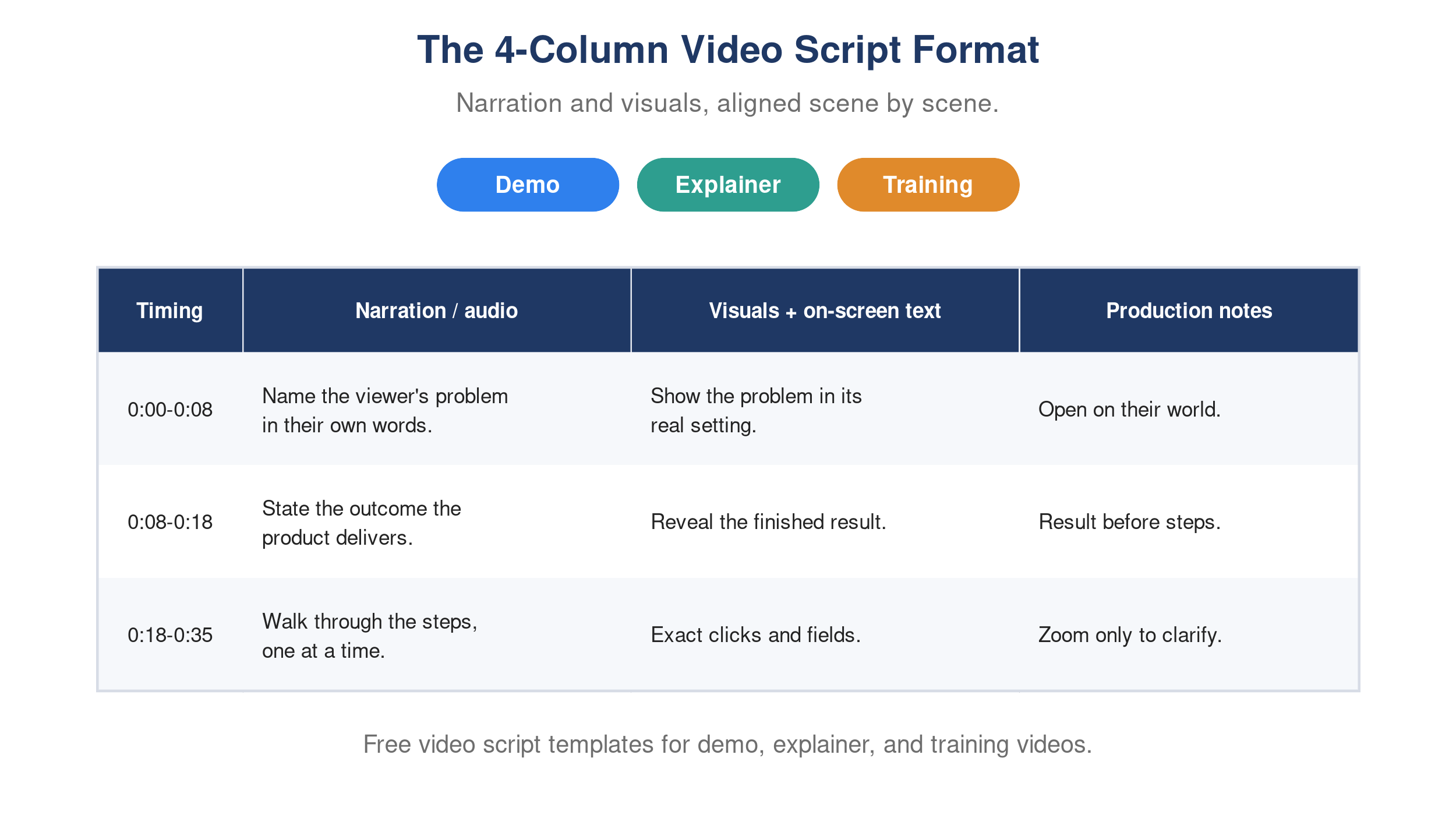
Free video script templates for demo, explainer, and training videos.
The best video script format: timing, audio, visuals, and notes
The most practical video script template uses four columns. This format is often called an audio-visual script because it keeps narration and on-screen action aligned. It works for screen recordings, animated explainers, presenter videos, and step-by-step training.
| Timing | Narration or audio | Visuals and on-screen text | Production notes |
|---|---|---|---|
| 0:00-0:00 | What the viewer hears | What the viewer sees | Assets, transitions, emphasis, or editing instructions |
| 0:00-0:00 | |||
| 0:00-0:00 |
This format prevents three common problems: narration that does not match the screen, scenes that are too crowded, and production decisions left until editing. It also gives reviewers something concrete to approve before anyone records or animates.
How long should a video script be?
Most clear instructional narration lands around 130 to 150 spoken words per minute. Delivery speed changes with pauses, terminology, and emphasis, so use these figures as planning ranges, not fixed rules.
| Target length | Approximate script length | Good fit |
|---|---|---|
| 30 seconds | 65 to 75 words | Feature teaser or single idea |
| 60 seconds | 130 to 150 words | Short demo or explainer |
| 90 seconds | 195 to 225 words | Focused product story |
| 2 minutes | 260 to 300 words | Demo with context and proof |
| 3 minutes | 390 to 450 words | Training lesson or detailed walkthrough |
Read the script aloud with a timer. Product names, unfamiliar terms, and UI steps usually take longer to say and process than ordinary prose. If the narration feels rushed, remove ideas rather than asking the speaker to talk faster.
Free product demo video script template
A product demo script should not tour every feature. It should show one audience how to complete one valuable job. The strongest structure is: situation, problem, outcome, workflow, proof, and next step.
Copyable product demo video script
- Working title: [Outcome the viewer wants]
- Audience: [Role or customer segment]
- One job to demonstrate: [Task the viewer should understand]
- Primary CTA: [Start trial / book demo / try feature / read guide]
| Timing | Narration or audio | Visuals and on-screen text | Production notes |
|---|---|---|---|
| 0:00-0:08 | If you [situation], you have probably run into [specific problem]. | Show the problem in its real setting. On-screen text: “[Problem in 3 to 6 words]“ | Open on the user’s world, not a logo animation. |
| 0:08-0:18 | [Product] helps [audience] achieve [outcome] without [old friction]. | Show the finished state or key outcome. | Reveal the result before explaining every step. |
| 0:18-0:35 | Start by [step 1]. Then [step 2]. | Show the exact clicks or actions. | Zoom only when it clarifies the action. |
| 0:35-0:50 | Next, [step 3]. [Explain what the product does automatically]. | Continue the workflow and highlight automation. | Keep cursor movement deliberate. |
| 0:50-1:02 | Now you have [specific result]. [Optional proof or constraint]. | Show the completed output, status, or before and after. | Use real product footage whenever possible. |
| 1:02-1:10 | To [achieve outcome], [CTA]. | End card with one next action. | Remove secondary calls to action. |
Filled product demo script example
This fictional example shows a project-management workflow. Replace the details with your actual product and verified outcome.
| Timing | Narration or audio | Visuals and on-screen text | Production notes |
|---|---|---|---|
| 0:00-0:07 | Project updates often arrive in five different places, leaving someone to rebuild the status by hand. | Rapid view of email, chat, spreadsheet, and task board. Text: “Updates everywhere.” | Keep each source legible but brief. |
| 0:07-0:16 | Northstar brings those updates into one project view and prepares a clean weekly summary. | Open the Northstar project dashboard. | Show the outcome immediately. |
| 0:16-0:30 | Connect the team workspace, then choose the project and reporting period. | Show Connect, project selector, and date range. | Zoom on each control as it is named. |
| 0:30-0:44 | Northstar groups completed work, risks, and next steps, while linking every statement to its source. | Generate report; highlight the three sections and source links. | Pause long enough to scan the output. |
| 0:44-0:55 | Review the draft, edit any detail, and publish it to the stakeholder channel. | Edit one sentence, then select Publish. | Do not imply the draft is always perfect. |
| 0:55-1:03 | Your weekly update is ready without reconstructing the project from scratch. | Show published report and confirmation. | End on the completed job. |
| 1:03-1:10 | Create your first project update with Northstar. | CTA card. | One CTA only. |
Product demo script tips
- Demonstrate a workflow, not a menu.
- Name the audience and their problem in the opening sentence.
- Show the result early, then explain how it happens.
- Match every spoken action to visible product behavior.
- Avoid claims such as “instant,” “effortless,” or “always accurate” unless you can prove them.
- Record against a controlled demo account so personal or customer data never appears.
For more planning guidance, see product demo types, scripts, and examples.
Free explainer video script template
An explainer video answers a conceptual question: what is this? Why does it matter? How does it work? The product may appear, but the story should remain centered on the audience’s problem and the new way to solve it.
Copyable explainer video script
- Working title: [Topic or promised outcome]
- Audience: [Who needs the explanation]
- Single takeaway: [One sentence the viewer should remember]
| Timing | Narration or audio | Visuals and on-screen text | Production notes |
|---|---|---|---|
| 0:00-0:10 | [Describe a familiar situation or tension.] | Show a recognizable moment, question, or consequence. | Avoid beginning with company history. |
| 0:10-0:25 | The problem is [cause], which leads to [cost or risk]. | Simplify the problem into two or three visual elements. | Do not overload the frame with text. |
| 0:25-0:40 | [Concept or product category] changes this by [plain-language mechanism]. | Transition from old state to new state. | Define unfamiliar terms immediately. |
| 0:40-1:00 | First, [part 1]. Then, [part 2]. Finally, [part 3]. | Use a three-part diagram, animation, or screen sequence. | Keep visual labels consistent with narration. |
| 1:00-1:15 | That means [practical outcome]. [Add verified proof, example, or limitation.] | Show a concrete result or comparison. | Cite factual claims on the page or in accompanying copy. |
| 1:15-1:25 | If you want to [next outcome], [CTA]. | One closing action. | Keep the CTA proportionate to the viewer’s intent. |
Filled explainer script example
This fictional example explains usage-based billing without relying on an imaginary statistic.
| Timing | Narration or audio | Visuals and on-screen text | Production notes |
|---|---|---|---|
| 0:00-0:09 | A software plan can look inexpensive until usage grows and the bill changes with it. | Price tag expands as usage bars rise. | Use neutral, not alarming, motion. |
| 0:09-0:22 | That happens when pricing is tied to events such as API calls, minutes, storage, or active users. | Four labeled usage meters. | Define “usage-based pricing” on screen. |
| 0:22-0:35 | Usage-based billing connects cost to consumption rather than charging one fixed amount for everyone. | Compare flat fee and variable meter. | Keep the diagram simple. |
| 0:35-0:55 | The provider measures an event, applies a unit rate or tier, and adds the result to the billing period. | Animate Measure, Rate, Bill. | Pause at each step. |
| 0:55-1:10 | It can lower the entry cost, but forecasting requires realistic usage ranges and clear overage rules. | Show a range forecast and an overage alert. | Present benefit and tradeoff together. |
| 1:10-1:20 | Before choosing a plan, model a quiet month, a normal month, and a peak month. | Three-column calculator. | End with an actionable next step. |
Explainer video script tips
- Limit the video to one central question.
- Use concrete nouns and verbs instead of abstract business language.
- Explain the mechanism, not merely the benefit.
- Pair each new idea with one visual model, example, or demonstration.
- Keep the brand in service of the explanation. Do not turn the middle into a feature catalogue.
- State limitations when they materially affect the decision.
If you need format inspiration, explore these SaaS explainer video examples and study how each one turns an abstract product into a visible story.
Free training video script template
A training video script must help someone perform or remember an action. It needs a learning objective, prerequisite context, a clear sequence, warnings at the relevant step, and a final check for understanding.
Copyable training video script
- Lesson title: [Task the learner will complete]
- Learner: [Role or experience level]
- Learning objective: By the end, you can [observable action].
- Prerequisites: [Access, tools, prior knowledge, or safety conditions]
| Timing | Narration or audio | Visuals and on-screen text | Production notes |
|---|---|---|---|
| 0:00-0:12 | By the end of this lesson, you will be able to [observable action]. | Title and learning objective. | Use a measurable verb: create, identify, configure, verify. |
| 0:12-0:25 | Before you begin, make sure [prerequisites]. | Show required access, equipment, or starting screen. | Put safety or permission requirements before the first action. |
| 0:25-0:45 | Step 1: [action]. [Explain what success looks like.] | Demonstrate the action and highlight the result. | Do not cut away before the learner sees confirmation. |
| 0:45-1:05 | Step 2: [action]. If [common issue], [recovery]. | Demonstrate normal path and brief error state. | Place the warning beside the risky step. |
| 1:05-1:25 | Step 3: [action]. | Demonstrate the final action. | Keep labels identical to the interface or procedure. |
| 1:25-1:38 | Check your work: you should see [verification condition]. | Show correct output and one common incorrect output. | Make verification visually unambiguous. |
| 1:38-1:50 | Quick check: [question or scenario]. | Display question; pause before revealing answer. | Give the learner time to think. |
| 1:50-2:00 | You can now [objective]. Next, [follow-on resource or task]. | Recap and one next step. | Link to the SOP, course, or support path. |
Filled training script example
This fictional example trains a support agent to escalate a priority issue.
| Timing | Narration or audio | Visuals and on-screen text | Production notes |
|---|---|---|---|
| 0:00-0:10 | By the end of this lesson, you can escalate a priority-one support issue with the required evidence. | Lesson title and objective. | Keep the objective visible for three seconds. |
| 0:10-0:22 | You need agent access to the support console and the incident channel. | Show both prerequisites. | Do not display real customer records. |
| 0:22-0:42 | First, confirm that the issue matches a priority-one condition in the severity guide. | Open severity guide; highlight service outage and security event. | Link the current policy below the video. |
| 0:42-1:02 | Next, capture the account, start time, affected workflow, and the evidence already collected. | Fill the four required fields in a training record. | Use fictional data. |
| 1:02-1:20 | Select Escalate, choose Priority One, and notify the incident channel. | Show the menu and confirmation. | Pause on the confirmation message. |
| 1:20-1:34 | Your escalation is complete when the incident ID appears and the channel receives the alert. | Show both verification points. | Present success criteria together. |
| 1:34-1:48 | Quick check: should a single billing question be marked priority one? No, use the billing queue unless the severity guide says otherwise. | Question, three-second pause, then answer. | Avoid teaching exceptions that conflict with policy. |
| 1:48-1:58 | You can now escalate a priority-one issue. Open the severity guide before handling a live case. | Recap and link. | End with the authoritative policy. |
Training video script tips
- Write one observable learning objective per short lesson.
- Put prerequisites and safety conditions before the procedure.
- Number steps in the narration and on screen.
- Use the exact labels learners will see in the software, machine, or form.
- Demonstrate the correct result, not only the clicks.
- Place warnings beside the action that creates risk.
- Include a scenario, question, or task that checks understanding.
- Keep the source SOP or policy linked so learners can verify the current rule.
For a complete production workflow, see how to create employee training videos.
How to adapt the templates for different video styles
The story structure and production format are separate decisions. The same training script can become a screen recording, animation, presenter video, or document-led video.
| Video style | Put in the visual column | Add to production notes |
|---|---|---|
| Screen-recorded tutorial | Exact clicks, fields, cursor position, and confirmation states | Demo account, zoom points, sensitive-data redaction |
| Animated explainer | Objects, icons, diagrams, transitions, and labels | Brand style, motion behavior, asset list |
| Presenter or avatar video | Presenter lines, supporting B-roll, lower thirds | Delivery, pronunciation, framing, disclosure requirements |
| Slide or document video | Slide number, chart, highlighted passage, key takeaway | Source version, citation, crop, animation |
| Physical procedure | Camera angle, hands, equipment state, safety detail | PPE, location, retakes, subject-matter approval |
Do not write “show feature” or “add animation” and leave the production team to interpret it. Describe the evidence the viewer must see: the cursor selects a field, the status changes to Approved, or the valve aligns with the green marker.
How to write a video script in seven steps
- Define one viewer and one outcome. “Everyone who might use the product” is not an audience. Choose a role, knowledge level, and situation. Then define what that person should understand or do after watching.
- Choose the right structure. Use the demo template for a product workflow, the explainer template for a concept or category, and the training template for a repeatable action. Mixing all three often produces a video that is too broad.
- Outline scenes before writing narration. List the visual proof needed in order. If there is nothing meaningful to show for a paragraph, it may belong in accompanying text rather than the video.
- Write for the ear. Use short sentences, contractions, and direct language. Read every line aloud. Rewrite anything that sounds like a report, landing page, or keyword list.
- Add visual direction. Specify the screen, object, animation, label, or state the viewer must see. Keep on-screen text shorter than the narration; it should reinforce the idea, not duplicate a paragraph.
- Time the draft. Perform a realistic read while advancing through the planned visuals. Give the audience enough time to inspect a new interface, diagram, or safety step.
- Review for accuracy and accessibility. Ask a subject-matter expert to verify the process and claims. Check names, UI labels, policy versions, pronunciations, captions, contrast, and whether the meaning survives without sound.
Turn a script into a video without building every scene manually
The template is useful even when AI handles part of production because it creates an approved source of truth. You can paste a finished script into a conventional editor, record it with a presenter, or use a tool that builds scenes and narration from the source.
Velo is designed for the last workflow. You can start from a script, a rough screen recording, a PDF or presentation, a URL, or an SOP. It structures scenes, generates narration, adds captions and visual emphasis, and lets you update the script instead of re-recording the full video. That makes it relevant to product demos, help content, and training videos made from existing company material.
This is not the right approach for every production. A cinematic brand film still benefits from a creative team and a professional timeline. The advantage appears when accuracy, consistency, and repeatable updates matter more than frame-by-frame artistic control.
Video script checklist before production
- The audience is specific.
- The video has one main outcome.
- The opening gives context without a long preamble.
- Each scene contains one primary idea.
- Narration and visuals describe the same moment.
- Claims, statistics, and product behavior are verified.
- The script has been read aloud and timed.
- UI labels, terminology, and pronunciations are correct.
- Captions and on-screen text will remain readable.
- Sensitive or personal data is absent from recordings.
- A subject-matter expert has approved the final procedure.
- The closing asks for one relevant next action.
Frequently asked questions
What is a video script template?
A video script template is a reusable structure for planning narration, visuals, timing, and production direction. An audio-visual template places what the viewer hears beside what the viewer sees, helping writers, reviewers, presenters, and editors agree on the video before production begins.
What format should a video script use?
For most business videos, use four columns: timing, narration or audio, visuals and on-screen text, and production notes. A simple two-column format with audio and visuals also works, but separate timing and notes make handoffs and reviews clearer.
How do I write a product demo video script?
Start with the user’s situation and problem, state the outcome, show one workflow step by step, verify the finished result, and end with one CTA. Avoid touring the entire interface. A strong demo proves how a specific audience completes a valuable job.
What should an explainer video script include?
Include a familiar context, the problem and its cause, a plain-language definition of the solution, how it works, a concrete example or proof point, and one next step. Keep the video centered on a single question so the explanation remains coherent.
What should a training video script include?
Include an observable learning objective, prerequisites, numbered actions, warnings at the relevant step, a visible success condition, a knowledge check, and a recap. Link the authoritative SOP or policy when the content may change.
Can AI write a video script?
AI can generate an outline or first draft, but a human should verify the audience, claims, workflow, terminology, and tone. For product or training content, a subject-matter expert must confirm that the script matches the current interface, process, policy, or safety requirement.
Can I make a video without filming?
Yes. Animation, stock media, screen generation, AI narration, avatars, and document-to-video tools can produce a video without a camera shoot. Choose the format based on what the audience needs to see. Product and training videos usually benefit from real screens, source documents, diagrams, or process visuals rather than generic stock footage.
Start with the script, not the software
A clear script prevents expensive fixes later. Choose the template that matches the job, write the narration and visual proof together, time it aloud, and get the facts approved before production.
Download the editable template, or try Velo to turn an approved script, document, or recording into a video you can update as your product changes. Book a demo to see it on your own workflow.