How to Embed a YouTube Video in PowerPoint
To embed a YouTube video in PowerPoint, copy the video's URL, then in PowerPoint go to Insert, then Video, then Online Video, paste the link, and click Insert. The video streams from YouTube during your presentation, so you need an internet connection to play it. Full steps, the embed-code method, and offline options are below.
This video was made with Velo. No editing, no retakes.
Try it freeMethod 1: paste the YouTube URL
- In your browser, open the YouTube video and copy the URL from the address bar.
- In PowerPoint, select the slide where you want the video.
- On the Insert tab, choose Video, then Online Video.
- Paste the URL into the Online Video box.
- Click Insert. A video rectangle appears, which you can move and resize.
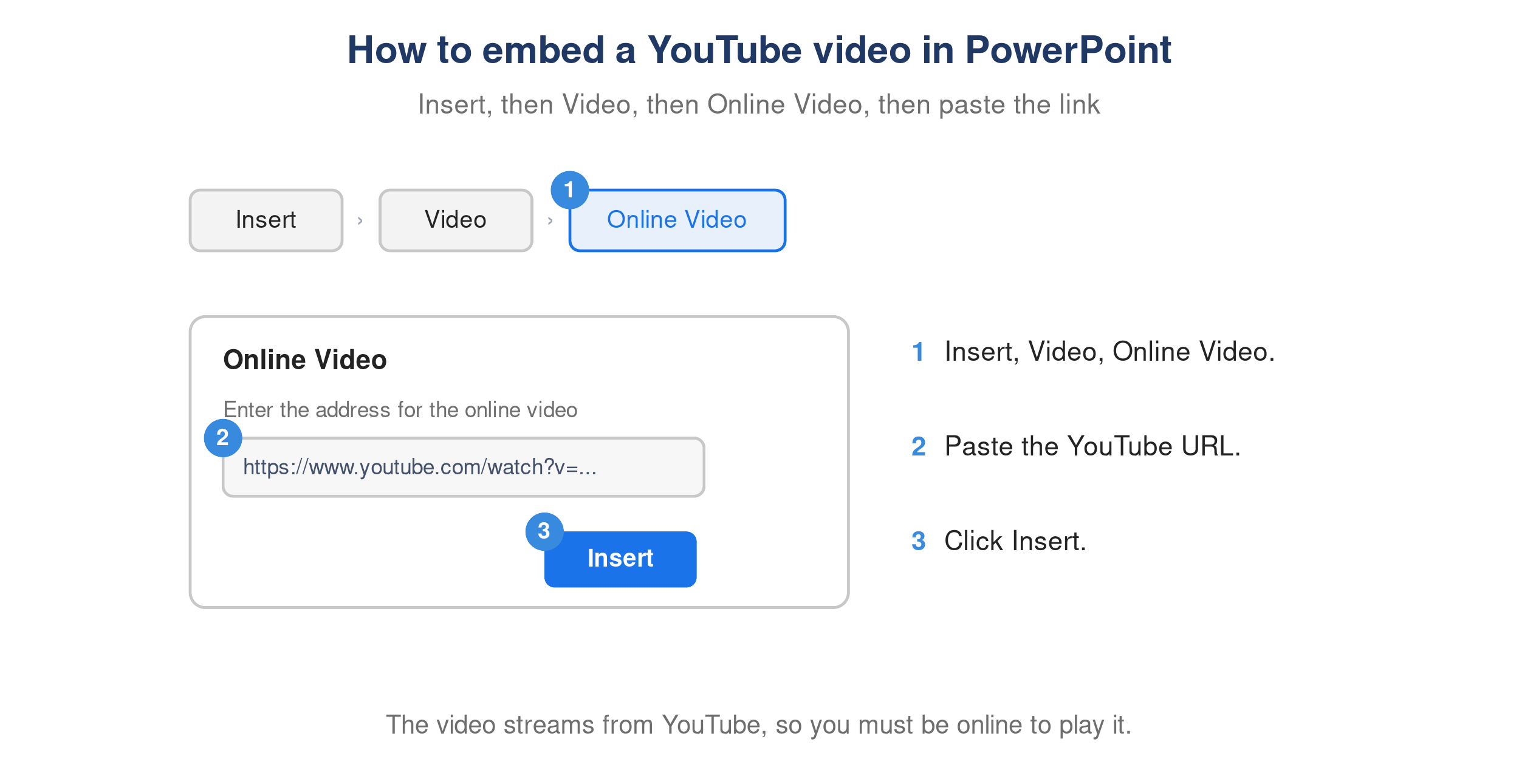
PowerPoint Insert Online Video dialog with a YouTube URL pasted, ready to insert.
Method 2: use the embed code
For older versions or more control:
- On YouTube, click Share, then Embed, and copy the iframe embed code.
- In PowerPoint, go to Insert, then Video, then Online Video.
- Paste the code into the From a Video Embed Code box and press Enter.
Play and internet notes
Online videos stream from YouTube, so you must be online, and PowerPoint’s Trim, Fade, and Bookmark tools do not work on them. To present offline or trim the clip, insert a downloaded file instead with Insert, then Video, then This Device.
When you need your own video, not someone else’s
Embedding a YouTube clip is easy. Making your own is where people get stuck. If you need a product demo, explainer, or training clip for the deck, Velo builds one fast:
- Upload the deck or paste a link, and Velo turns it into a narrated video.
- Or record your screen and Velo rebuilds it into a polished, narrated video, trimmed with auto-zoom.
- Download the MP4 and drop it into PowerPoint with Insert, then Video, then This Device, so it plays offline with no buffering.
See also how to add a video to PowerPoint for the local-file steps, and turn any video into a written doc for speaker notes.