How to Share Your Screen on Zoom
To share your screen on Zoom, click the green Share Screen button in the meeting controls, choose your whole screen, a window, or a whiteboard, then click Share. If you are sharing a video, tick Share sound and Optimize for video clip first. Click Stop Share to finish. Full steps for desktop and phone, plus fixes, are below.
This video was made with Velo. No editing, no retakes.
Try it free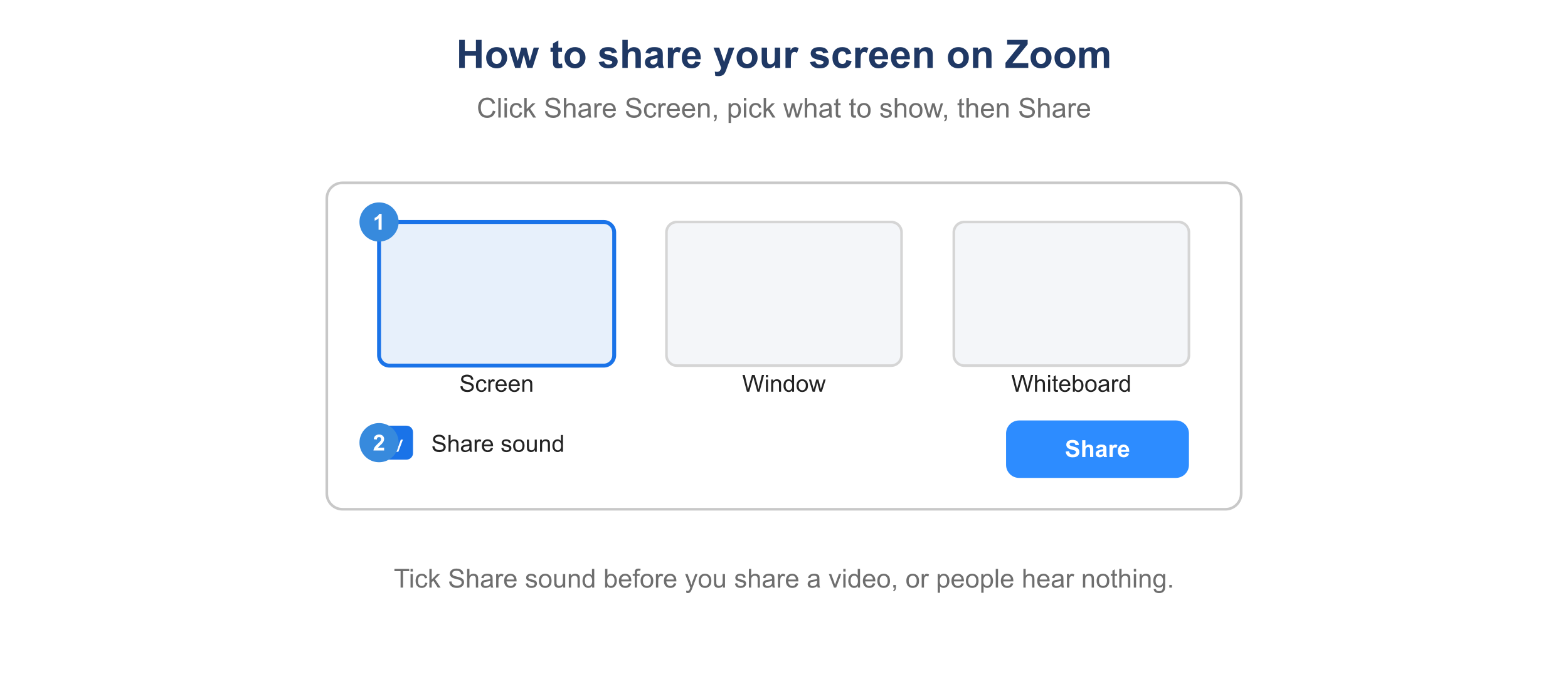
The Zoom Share Screen window, with the Share sound option.
How to share your screen on Zoom
- Join or start the Zoom meeting.
- Click the green Share Screen button in the meeting controls.
- Choose what to share: your whole Screen, a specific window, or a Whiteboard.
- If you are sharing audio or a video, tick Share sound and Optimize for video clip.
- Click Share. To finish, click Stop Share at the top of the screen.
How to share one window instead of your whole screen
In the Share Screen window, select the specific app rather than Screen. Only that window is shared, so messages, notes, and other tabs stay private. This is the safest choice for a live demo.
How to share computer sound on Zoom
Before you click Share, tick Share sound in the bottom-left of the Share Screen window. This sends the audio from your computer into the meeting, which is essential when you play a video.
How to share your screen on Zoom on a phone
In the mobile app, tap Share in the meeting controls, tap Screen, then Start Broadcast (iPhone) or Start now (Android). Tap the red bar and Stop Share when done.
Why can’t I share my screen on Zoom?
- The Share button is greyed out. The host may have restricted sharing to hosts only. Ask the host to allow participant sharing.
- The screen is black when you share. Grant Zoom screen-recording permission on a Mac in System Settings, then Privacy and Security, then Screen Recording.
- There is no sound. Tick Share sound before you start sharing.
How to turn a Zoom screen share into a video worth keeping
A live share is gone the moment the call ends. When you want the walkthrough to live on as a demo or training video, record it once and Velo rebuilds it into a polished video that is trimmed, with auto-zoom on what matters. One click turns the same recording into a written doc for your help center.