Best Training Video Software in 2026: 9 Tools Compared
The best training video software depends on what you already have and what learners need. Camtasia suits manually edited screen tutorials, Synthesia handles avatar-led lessons, Vyond builds animated scenarios, and Articulate 360 or iSpring Suite fit when interactive course delivery and LMS standards matter. Velo is strongest for turning SOPs, documents, and workflows into repeatable training videos you can update.
This researched comparison of the best training video software covers nine different production models, their strengths, limitations, and current pricing approach. Product information was verified against official pages on September 1, 2026. We do not claim first-hand testing of every platform.
Disclosure: this guide is published by Velo, which appears as one of the nine tools below. We have kept the comparison fair and credited what each tool does best.
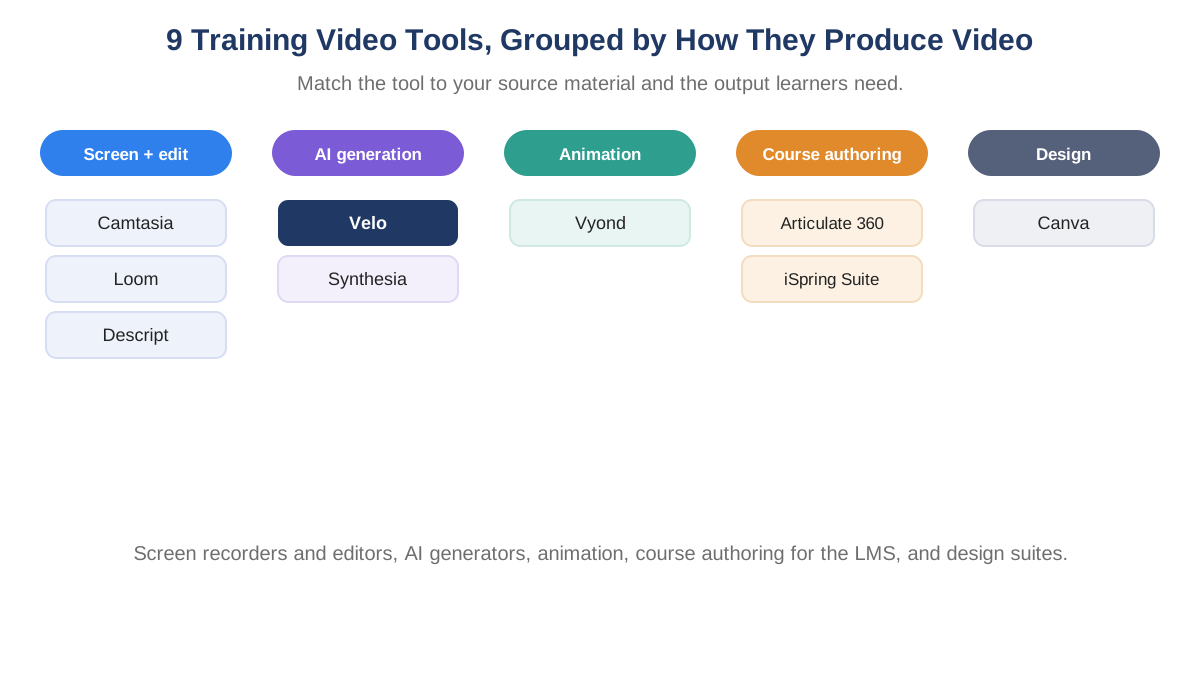
Best training video software in 2026 compared by use case.
Quick takeaways
- Start with the source material: SOP, software workflow, presentation, presenter footage, or course outline.
- Separate “video creation” from “course authoring.” SCORM, quizzes, and branching require different tools from a standard MP4.
- Plan for revisions and updates, not only the first export.
- Choose Camtasia for detailed screen editing, Synthesia for avatars, Vyond for animated scenarios, and Velo for repeatable knowledge-to-video production.
- Choose Articulate 360 or iSpring when training must become an interactive LMS package.
Training video software compared at a glance
| Tool | Best for | Start from | Main output | Free option | Key limitation |
|---|---|---|---|---|---|
| Camtasia | Detailed software tutorials | Screen, camera, PowerPoint, media | Edited video; quizzes and SCORM available | Limited recorder options | Manual timeline work takes time |
| Synthesia | Avatar-led lessons | Script, document, slides | AI-presenter video | Yes | Credits are shared across AI features |
| Velo | Repeatable SOP, product, and process training | Docs, SOPs, screens, decks, scripts | Video + written doc | Yes | Not a full interactive course-authoring suite |
| Vyond | Animated scenarios and soft-skills training | Script, document, URL | Animated or avatar video | Trial | Higher entry price than lightweight editors |
| Articulate 360 | Interactive workplace courses | Documents, slides, course outline | SCORM, xAPI, cmi5, AICC, web, video | Trial | Expensive for teams that only need video |
| iSpring Suite | PowerPoint-based eLearning | PowerPoint | SCORM course, quiz, video | Free edition and trial | PowerPoint-centric, desktop authoring |
| Descript | Editing presenter or interview footage | Recorded audio and video | Edited video, clips, transcript | Yes | Media-hour and AI-credit allowances |
| Loom | Fast informal knowledge sharing | Live screen and camera | Hosted recording | Yes | Less structured and reusable than course tools |
| Canva | Simple branded training content | Templates, slides, stock, script | Designed video or presentation | Yes | Limited procedural and LMS depth |
What counts as training video software?
Training video software is any tool used to record, generate, edit, package, or share video that teaches a job, concept, procedure, or behavior. That category contains several products that are not direct substitutes:
- Screen recorders and editors capture a live software or desktop workflow.
- AI video generators build narrated scenes from a script, document, or prompt.
- Animation tools visualize scenarios that would be difficult or costly to film.
- Course-authoring tools add quizzes, branching, completion rules, and LMS formats.
- Asynchronous recorders make quick internal explanations easy to capture and share.
- Design suites help non-editors assemble polished, template-led videos.
This is why a single ranked list can be misleading. The best employee training video software for a two-minute software walkthrough is not necessarily the best platform for a compliance course that requires scored assessment and SCORM tracking.
How we evaluated the tools
We compared each product against the parts of training production that create the most operational work:
- Source material: can the tool use documents, SOPs, slides, screens, scripts, recordings, or all of them?
- Training format: does it create a screen tutorial, presenter video, animation, interactive course, or quick message?
- Accuracy and editing: how easily can a subject-matter expert correct the script, sequence, and visuals?
- Updates: can a team revise one section, or must it record and rebuild the lesson?
- Voice and captions: are narration, captions, and translation supported?
- Learning features: does it support quizzes, branching, SCORM, xAPI, cmi5, or learner reporting?
- Collaboration and governance: can teams review, brand, secure, and manage content?
- Pricing model: is cost tied to authors, seats, credits, media hours, or an annual license?
For regulated, safety-critical, clinical, or equipment training, software does not replace expert review. The final lesson should be approved against the current procedure, policy, and local requirements.
1. Camtasia: best for manually edited screen training
Camtasia is a strong choice for screen-based tutorials when the editor wants precise control. It records screen, camera, microphone, and system audio as editable sources, then provides a multitrack timeline, cursor effects, zooms, annotations, transitions, captions, and audio cleanup.
The current Camtasia suite also spans script generation, text-based editing through Audiate, AI voiceover, translation, and avatars at higher tiers. Its training-specific value is more concrete: TechSmith’s official plan comparison lists quizzes and SCORM export alongside screen recording and editing.
Best capabilities for training:
- High-resolution screen and camera recording
- Cursor smoothing, path editing, zoom, and callouts
- Multitrack timeline and detailed manual editing
- Captions, audio cleanup, and text-based editing on qualifying plans
- PowerPoint import
- Quizzes and SCORM-ready output
Where it fits: software tutorials, instructor-led screen demonstrations, recorded lectures, technical walkthroughs, and polished how-to video libraries.
Limitation: quality depends on capture and editing skill. When a product interface or process changes, the editor may need to rerecord, patch, and re-export affected sequences. This can become expensive across a large library.
Pricing approach: annual individual plans range from a low-cost capture tier to higher video and AI-production tiers. The useful training features begin above the entry tier, whose Editor exports are watermarked. Confirm the current package on TechSmith’s site before purchase.
2. Synthesia: best for AI-avatar training videos
Synthesia turns a script, document, or presentation into a scene-based video led by an AI presenter. It is well suited to organizations that want a consistent on-screen instructor without scheduling filming, studios, or repeated presenter sessions.
Best capabilities for training:
- Large library of AI presenters and voices
- Script and document-assisted video creation
- Templates and brand controls
- Captions, dubbing, translation, and multiple language versions
- Personal and branded avatar options on qualifying plans
- Interactive video capabilities on higher plans
Where it fits: policy overviews, corporate communication, onboarding introductions, compliance lessons, and multi-language presenter-led training.
Limitation: an avatar can deliver the explanation but does not automatically make the lesson instructionally sound. Teams still need a clear objective, correct source material, visual evidence, and expert approval. For procedural software training, make sure the learner sees the actual workflow rather than a presenter beside generic stock footage.
Pricing approach: Basic, Starter, Creator, and Enterprise plans use a shared credit pool. Those credits can cover multiple AI features, so the “minutes per month” figure is only an upper bound if the team also uses dubbing or generated assets. Check Synthesia’s official pricing and model the full workflow.
3. Velo: best for turning company knowledge into training videos
Velo is an AI training video maker built around existing company context. A team can start with a policy, SOP, PDF, slide deck, URL, script, or rough recording. Velo structures the material into scenes, applies narration, adds captions and visual direction, and produces a written companion alongside the video.
Velo writes the narration script from your source material, so a subject-matter expert does not have to record every version.
This approach is especially useful when the content changes. Instead of scheduling the trainer for another full take, the owner can edit the script or source and regenerate the affected material. The same approved lesson stays consistent every time it is regenerated, and can be published in other languages for a distributed workforce.
Best capabilities for training:
- Turn SOPs, manuals, and decks into training videos
- Create software walkthroughs from a screen recording, URL, or script
- Add narration in your own voice without the subject-matter expert recording every version
- Add captions and clear on-screen text
- Publish the same lesson in multiple languages
- Generate an editable written doc alongside the video
- Update a section when the process, policy, or interface changes, then regenerate
Where it fits: employee onboarding, standard operating procedures, product training, support-agent enablement, compliance communication, equipment guidance, and knowledge-base how-tos. For a full production workflow, see our guide to creating employee training videos.
Limitation: Velo is not an advanced cinematic editor and does not replace a complete branching course-authoring environment. If the deliverable requires complex assessment logic or a deeply interactive SCORM module, pair the video with an LMS or use Articulate or iSpring.
Pricing approach: Free, Pro, Ultra, and Enterprise plans with monthly Velo-minute allowances and team capabilities. Verify current limits on the Velo pricing page.
4. Vyond: best for animated scenarios and soft-skills training
Vyond is strongest when the lesson needs to show a situation rather than record a literal screen. Its character animation, environments, props, actions, text-to-speech voices, and AI creation tools help L&D teams build conversations and decisions that would be awkward, sensitive, or expensive to film.
Best capabilities for training:
- Character-led animation and scenario building
- AI avatars and text-to-video tools
- Screen and webcam recording
- Broad text-to-speech voice selection
- Document, script, and URL inputs
- Translation and team collaboration on higher plans
Where it fits: management coaching, customer-service scenarios, workplace conduct, safety situations, change communication, and soft-skills training.
Limitation: animation can become decoration if it does not support a clear decision or behavior. Building bespoke scenes also takes more authoring time than generating a simple presenter or document-led video.
Pricing approach: Vyond is sold as annual or monthly subscriptions, with credit allowances and higher tiers for collaboration, translation, branding, security, and client work. Current pricing starts materially higher than basic browser editors. Review Vyond’s plans for the exact seat and credit terms.
5. Articulate 360: best for interactive, LMS-ready training
Articulate 360 is a workplace training platform rather than a conventional video editor. Rise supports responsive course creation, while Storyline provides deeper interactions, simulations, layers, triggers, and branching. Review supports stakeholder feedback, and content can be exported to standard LMS formats.
Best capabilities for training:
- Responsive and custom interactive course authoring
- Quizzes, branching, simulations, and assessments
- AI-assisted drafting from documents, slides, or notes
- Collaboration, review, templates, and asset libraries
- Export to SCORM, xAPI, cmi5, AICC, web, PDF, and video
- Optional localization and training-delivery capabilities
Where it fits: compliance courses, formal onboarding, certification paths, system simulations, scored assessments, and enterprise L&D programs.
Limitation: Articulate is excessive if the only deliverable is a short MP4. It also requires instructional-design effort. Interactivity should serve the learning objective rather than add clicks for their own sake.
Pricing approach: Articulate 360 is licensed per author per year at a four-figure annual cost, with Teams priced higher per user and localization and Reach available separately. Confirm current regional pricing and add-ons on Articulate’s pricing page.
6. iSpring Suite: best for PowerPoint-based training teams
iSpring Suite is a practical bridge for teams that already build learning in PowerPoint. The desktop add-in preserves slides and animations while adding narration, video lectures, quizzes, interactions, role-play scenarios, and LMS publishing.
Best capabilities for training:
- Familiar PowerPoint authoring workflow
- Slide narration and video lecture creation
- Quizzes, interactions, and role-play simulations
- Publishing to SCORM and other LMS formats
- AI-assisted course creation in the AI edition
- A free edition and 14-day trials for evaluating workflows
Where it fits: L&D teams with large PowerPoint libraries, rapid course conversion, instructor materials, assessments, and LMS-bound training.
Limitation: iSpring is PowerPoint-centric and desktop-oriented. Teams seeking flexible standalone video production, Mac-first workflows, or highly custom interactions may prefer another platform.
Pricing approach: iSpring sells annual per-author licenses, with a standard Suite and a higher-priced AI edition, plus educator and nonprofit quotes. Check the currency displayed for your location before comparing totals.
7. Descript: best for editing recorded instructors and interviews
Descript is useful when the raw material is already a person speaking. It transcribes the recording and lets an editor cut the video by editing text. AI-assisted tools can remove filler words and retakes, improve audio, generate captions, create clips, and help repair or generate speech.
Best capabilities for training:
- Transcript-based audio and video editing
- Screen recording and remote Rooms
- Studio Sound, filler-word removal, and retake cleanup
- Captions, clip creation, and brand controls
- AI voice, generation, and translation depending on plan
- Familiar document-like review for non-editors
Where it fits: subject-matter-expert interviews, presenter-led lessons, webinar repurposing, narrated screen recordings, and internal knowledge clips.
Limitation: Descript improves recorded media. It does not inherently convert an SOP into a verified procedure or add a complete assessment layer. Teams must also manage monthly media-hour and AI-credit allowances.
Pricing approach: Free, Hobbyist, Creator, Business, and Enterprise. Current paid plan prices and allowances are published on Descript’s pricing page. Budget per editor and include the AI-credit consumption of the features you plan to use.
8. Loom: best for quick informal internal training
Loom is the fastest option in this list when a colleague simply needs to explain something on screen. Record the screen and camera, share a hosted link, and let viewers comment or react. Paid plans remove short recording limits and add higher resolution, branding, editing, and analytics. Higher plans include transcript editing, summaries, chapters, filler-word removal, and other AI workflows.
Best capabilities for training:
- Low-friction screen and camera recording
- Instant hosted sharing
- Transcription, captions, comments, and reactions
- Basic editing and branding on paid plans
- Viewer and engagement insights
- AI-assisted summaries, chapters, and cleanup on qualifying plans
Where it fits: peer-to-peer handoffs, quick process explanations, manager updates, code walkthroughs, and temporary internal guidance.
Limitation: a Loom recording can preserve the pauses, mistakes, and context of the moment. It is less suited to standardized, multi-language, assessment-led, or frequently maintained curricula unless a team adds a stronger production and governance process.
Pricing approach: Starter is free with recording and library limits. Business and Business + AI are priced per user per month, with Enterprise priced by sales. See Loom pricing or the official site for annual discounts and current seat rules.
9. Canva: best for simple branded training videos
Canva is accessible to teams that already use presentation templates and brand kits. Its video editor combines slides, stock media, animation, text, audio, recordings, and AI features in a shared design environment.
Best capabilities for training:
- Large template and asset libraries
- Simple drag-and-drop video and presentation design
- Brand kits and shared team workflows
- Recording, captions, audio, animation, and stock media
- Translation and AI-assisted creation depending on plan
- Free plan for basic production
Where it fits: orientation videos, simple explainers, visual microlearning, announcements, and lessons that resemble narrated presentations.
Limitation: Canva does not provide the procedural screen-editing depth of Camtasia or the learning logic of Articulate. Complex courses, technical walkthroughs, and assessment tracking require additional tools.
Pricing approach: Free, Pro, Business, and Enterprise plans. Pricing is localized by region and AI usage is allowance-based. Check the official Canva pricing page from the country where you will be billed.
Which training video maker is best for your use case?
| Training need | Recommended shortlist | Why |
|---|---|---|
| SOPs and policy documents | Velo, Articulate 360, iSpring | They begin from structured knowledge rather than only raw footage. |
| Software tutorials | Camtasia, Velo, Loom | Choose manual precision, automated polish, or speed. |
| Multi-language presenter lessons | Synthesia, Velo, Vyond | Each supports translation with a different visual format. |
| Soft-skills scenarios | Vyond, Articulate 360 | Animation and branching support decisions and dialogue. |
| Compliance with scored assessment | Articulate 360, iSpring, Camtasia | These support LMS or quiz-oriented delivery. |
| SME interviews and recorded lectures | Descript, Camtasia | Transcript cleanup or detailed editing improves existing recordings. |
| Quick peer knowledge transfer | Loom | Minimal setup and immediate sharing. |
| Simple template-led lessons | Canva, Vyond | Visual assets and accessible scene building. |
AI training video software vs. traditional editors
AI training video generators and traditional editors solve different bottlenecks.
Choose AI-assisted generation when:
- The source is already written in an SOP, policy, deck, or script.
- You need many lessons or language versions.
- Procedures change often.
- Subject-matter experts have limited recording time.
- Consistency matters more than unique cinematic treatment.
Choose a traditional editor when:
- Precise visual timing and creative control are essential.
- The lesson relies on original filmed demonstrations.
- An editor needs advanced compositing, audio mixing, or color work.
- The final piece is a flagship production rather than a reusable knowledge asset.
Many teams need both. An AI workflow can handle repeatable lessons while a skilled editor produces high-value demonstrations or footage that requires judgment.
Do you need video software or a course-authoring tool?
Choose a standard video tool when learners only need to watch, pause, search, or revisit a demonstration. Choose a course-authoring tool when you must verify completion, score knowledge, branch based on answers, simulate a system, or publish a package to an LMS.
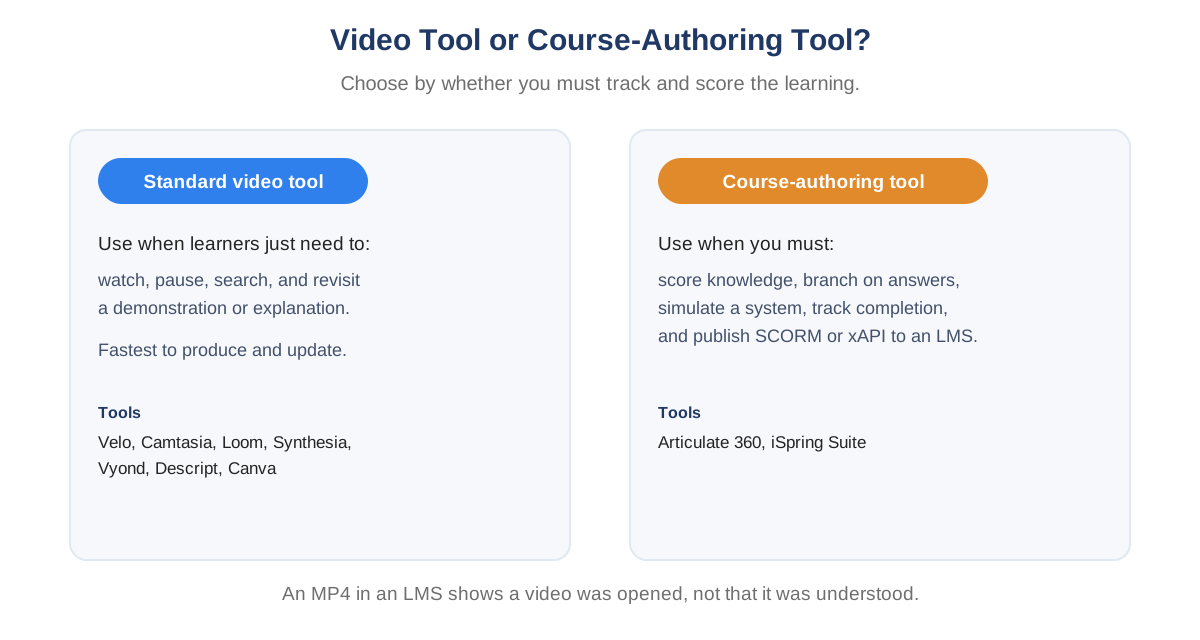
Choose a standard video tool when learners just watch and revisit; choose a course-authoring tool when you must score, branch, and track completion in an LMS.
An MP4 uploaded to an LMS may record that the video was opened or completed, depending on the platform, but it does not automatically prove understanding. If the training carries compliance, certification, or operational risk, add an assessment and define the evidence required.
A seven-step process for choosing training video software
- Define the behavior or knowledge outcome. Write what the learner should do after the lesson. “Understand security” is vague; “identify and report a suspicious login prompt” is observable.
- Inventory the source material. List the current SOPs, decks, policies, screen flows, recordings, and expert knowledge. Favor tools that can reuse authoritative sources without creating a second unmanaged version.
- Choose the delivery format. Decide whether the lesson needs real product footage, an instructor, animation, physical demonstration, a quiz, or a combination. Do not choose an avatar simply because it is available.
- Test one representative lesson. Use a normal project, not an unusually easy one. Include a revision, a reviewer, a caption correction, and the final delivery step.
- Calculate the full production cost. Include author seats, editor time, AI credits, translation, stock assets, LMS or hosting fees, and the time required to update old lessons.
- Review governance and accessibility. Check roles, SSO, data handling, retention, brand controls, caption editing, keyboard access, contrast, and export ownership. Requirements differ by organization and region.
- Plan the update cycle. Assign a content owner and review date. The best training video becomes a liability if the process changes and nobody knows which version is current.
Frequently asked questions
What is the best training video software?
It depends on the source and the required output. Camtasia suits manually edited screen tutorials, Synthesia avatar-led lessons, Vyond animation, and Articulate 360 or iSpring interactive LMS courses. Velo is a strong choice for converting SOPs, documents, decks, and workflows into reusable videos.
What is the best free training video software?
Loom, Canva, Velo, Synthesia, and Descript offer free entry points with different limits. iSpring Free is useful for simple PowerPoint-based eLearning, while free desktop editors can handle manual video work. “Free” plans often limit length, exports, AI use, branding, or storage, so test a complete lesson before standardizing.
How can I create a training video with AI?
Start with an approved learning objective and source document. Use AI to draft the script, scene plan, narration, captions, or language versions. Then have a subject-matter expert verify the procedure and claims. AI can accelerate production, but it should not be the authority for policy, safety, clinical, legal, or technical instructions.
Can training video software publish to an LMS?
Articulate 360 and iSpring Suite are built for standards such as SCORM, xAPI, cmi5, and AICC. Camtasia supports quizzes and SCORM-related output in qualifying plans. Ordinary MP4 creators can upload video to many LMSs, but the tracking and assessment depth depends on the LMS and package format.
How long should an employee training video be?
Make it only as long as the learning objective requires. A single software action may need two minutes; a physical safety procedure may need longer to show every critical step. Break broad topics into focused lessons so learners can find and revisit the exact task without scrubbing through a long recording.
What features should corporate training video software include?
Look for accurate captions, script or transcript editing, brand control, secure sharing, version ownership, analytics, accessibility support, and an efficient update path. Add localization for global teams and SCORM or assessment capabilities when completion and understanding must be tracked.
Can I make training videos without filming?
Yes. A document-to-video tool can build scenes and narration from an SOP or deck, avatar software can present a script, and animation tools can visualize a scenario. Use real screens, diagrams, process imagery, or approved source material so the lesson stays specific rather than looking like generic stock content.
Final recommendation
Do not buy training video software by counting AI features. Choose the production model that fits the knowledge you already have and the evidence learners need to see.
If your organization has useful training trapped in SOPs, manuals, decks, and expert walkthroughs, try Velo on one representative lesson. If the requirement is a complex interactive course, use a course-authoring platform; if it is a carefully edited live demonstration, choose a traditional editor. The right tool makes the accurate version easier to create, approve, update, and find. Book a demo to see the Velo workflow on your own material.