How to Record a Zoom Meeting
Yes, you can record a Zoom meeting. Click Record in the meeting toolbar and choose Record on this Computer or Record to the Cloud. If you're not the host, ask them to record or give you recording permission. Full steps are below for desktop, Mac, and iPhone, plus where your recordings save and how to turn that raw recording into a video people will actually rewatch.
This video was made with Velo. No editing, no retakes.
Try it freeHow to record a Zoom meeting (or Zoom call) as the host
On desktop, Mac, or laptop:
- Start your meeting.
- Click Record in the toolbar, or press Alt+R (Windows) or Cmd+Shift+5 (Mac).
- Choose Record on this Computer or Record to the Cloud (cloud recording needs a paid plan).
- A recording indicator shows for everyone in the call.
- Click Stop once done. Local recordings save with full audio and convert to MP4 when the meeting ends.
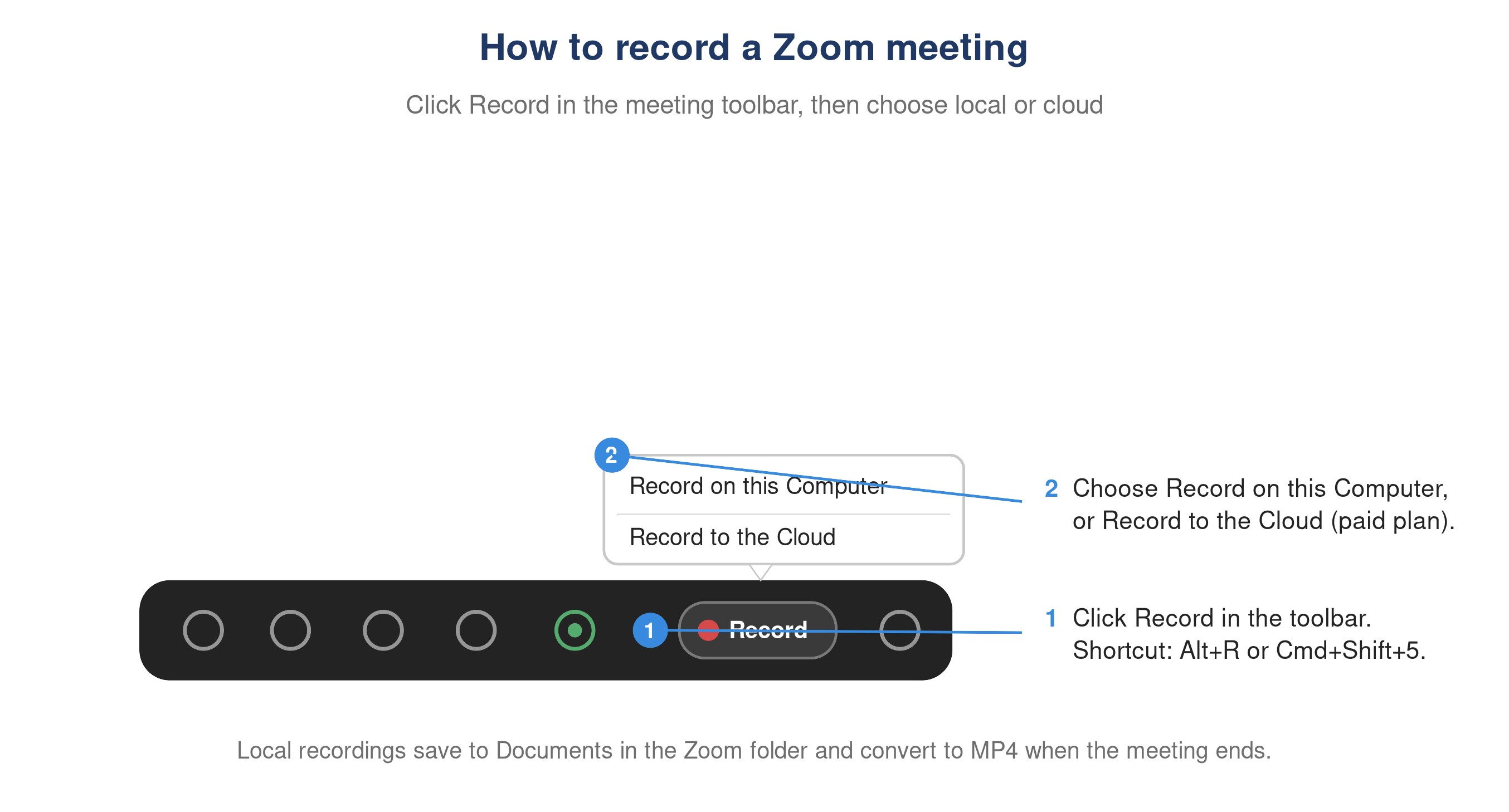
Zoom meeting toolbar showing the Record button and local versus cloud recording options.
How to record a Zoom meeting as a participant
If you’re not the host, the Record button stays greyed out until the host allows it. Ask them to grant you recording permission, or to record to the cloud and share the link. Recording without consent isn’t possible in Zoom by design, and in many regions it’s also against the law, so always ask first.
The steps are almost identical if you need to record a Teams meeting or a Google Meet.
How to record a Zoom meeting on iPhone, Android, or Chromebook
On mobile, only cloud recording is available, and only on paid plans: tap More (…) › Record to the Cloud. On a Chromebook, use cloud recording or its built-in screen recorder.
Where do Zoom recordings go? (find and save your recording)
- Local recordings save to the Zoom folder on your computer: Documents › Zoom.
- Cloud recordings live in the Zoom web portal under Recordings.
- To find a past recording, open the Zoom app or web portal and go to Recordings.
How to turn a Zoom recording into a video worth sharing
A raw Zoom recording is fine for the archive, but it’s long, full of dead air, and no one rewatches it. When you need to actually share the call, whether as a demo, an onboarding video, or a recap, this is where Velo comes in:
- Upload the Zoom MP4 to Velo.
- Velo writes a fresh script and rebuilds it into a polished, narrated video that’s trimmed, with auto-zoom on what matters.
- Need a change? Fix the script and regenerate. No re-recording.
- One click turns the same recording into a written doc (PDF or Markdown) for your help center or notes.
You record the call once. Velo makes it worth sending.
Why can’t I record my Zoom meeting?
- The Record button is greyed out. You are not the host. Ask the host to record, or to give you recording permission from the participants panel.
- Record to the Cloud is missing. Cloud recording needs a paid Zoom plan. On the free plan, choose Record on this Computer instead.
- There is no audio in the file. Check that the correct microphone and speaker are selected in Zoom’s audio settings before you record. Local recordings capture full audio by default.
- You cannot find the recording. Local recordings save to Documents, then Zoom, and convert to MP4 when the meeting ends. Cloud recordings live in the Zoom web portal under Recordings.
- The recording did not convert. Reopen Zoom and let it finish processing, and do not move the Zoom folder while it converts.