How to Screen Record on iPhone
To screen record on iPhone, add Screen Recording to your Control Center, then open Control Center and tap the record button. It counts down from three and captures everything on screen, then saves the video to the Photos app. To add your voice, long-press the record button and turn the Microphone on. Full steps, sound options, and fixes are below.
This video was made with Velo. No editing, no retakes.
Try it freeHow to screen record on iPhone (step by step)
- Add the control: open Settings, tap Control Center, then tap the plus next to Screen Recording.
- Open Control Center: swipe down from the top-right corner, or up from the bottom on older iPhones with a Home button.
- Tap the record button, the solid circle. A three-second countdown starts, then recording begins.
- Use your phone as normal. A red status bar or pill shows that you are recording.
- Stop: tap the red indicator at the top, then tap Stop. The video saves to Photos.
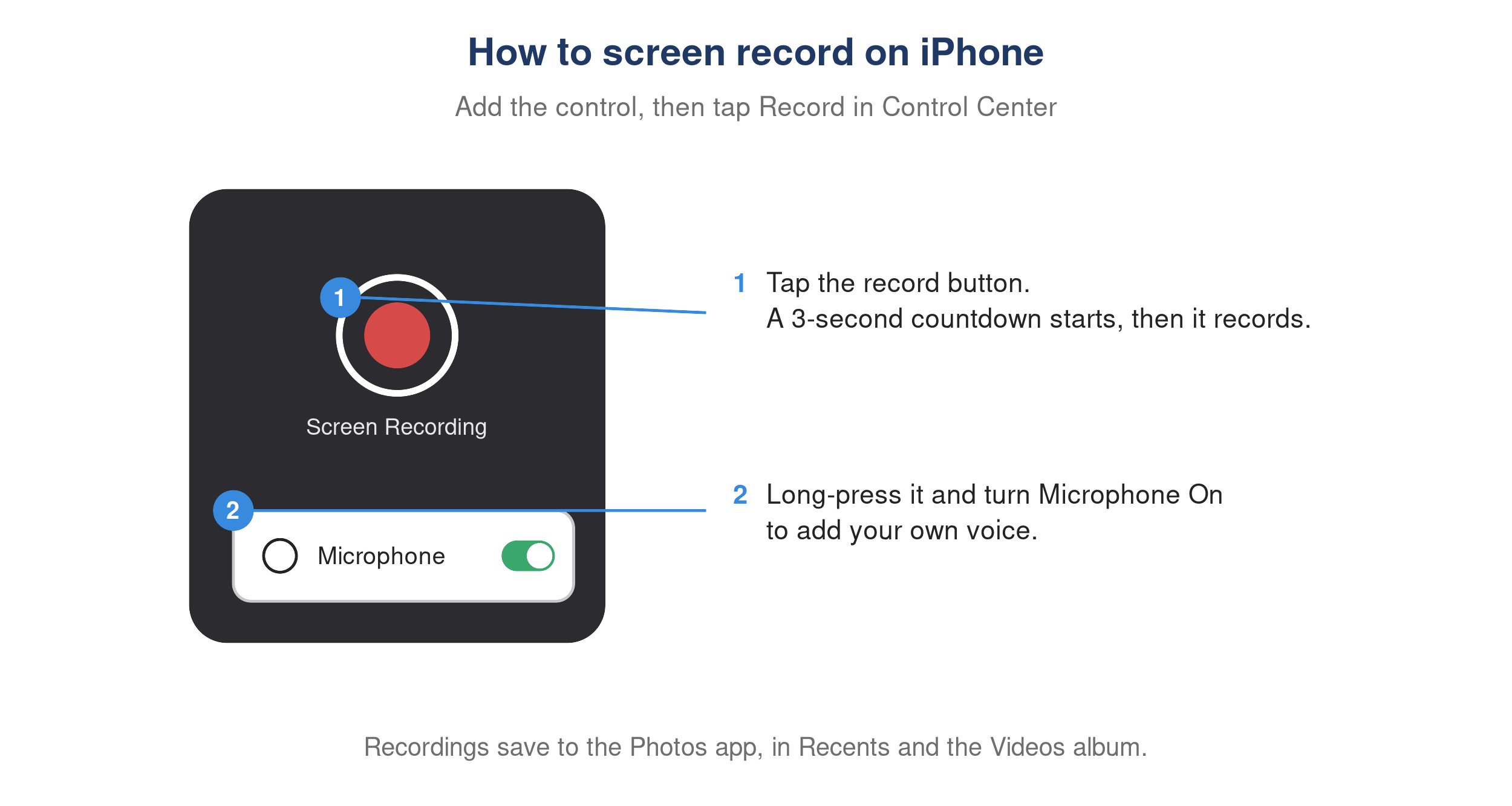
iPhone Control Center showing the screen recording button and the long-press Microphone toggle.
How to screen record on iPhone with sound
Your iPhone captures the app’s internal sound by default. To add your own narration on top:
- In Control Center, press and hold the record button.
- Tap Microphone to turn it On.
- Tap Start Recording. Your voice records along with the on-screen audio.
Where do iPhone screen recordings go?
Recordings save to the Photos app, in Recents and the Videos album. You can trim one right there with Edit, or, to cut dead air and tighten the pace, see how to speed up a video.
Why can’t I screen record on my iPhone?
- The button is greyed out or missing. Open Settings, then Screen Time, then Content and Privacy Restrictions, then Content Restrictions, and set Screen Recording to Allow.
- There is no sound in the recording. The Microphone was off, or the app blocks audio capture. Long-press the record button and turn Microphone on.
- Some apps stay black. Streaming apps like Netflix block screen recording by design.
- The recording is not in Photos. Wait a moment after you stop, since longer recordings take time to save.
How to turn an iPhone recording into a video worth sharing
A raw iPhone screen recording is long and rough. When you actually want to send it, as a demo, a bug report, or a how-to, this is where Velo comes in:
- Upload the recording to Velo on your computer, and it rebuilds it into a polished, narrated video that is trimmed, with auto-zoom on what matters.
- Velo writes a fresh script and narrates it in your own voice, so you do not need a clean live voiceover.
- Need a change? Fix the script and regenerate. No re-recording.
- One click turns the same recording into a written doc (PDF or Markdown) for your help center or notes.
You record on your phone once. Velo makes it worth sending.